Quick Facts
- Top Connection: Xbox Wireless Adapter (Low 6ms latency)
- Stats: 59% of Steam controller sessions use Xbox gamepads
- Requirements: Windows 10 Anniversary Update or later for Bluetooth
- Compatibility: Xbox Series X/S, Elite Series 2, and Bluetooth-enabled Xbox One models
- Direct Answer: The most reliable way to use a wireless xbox controller pc is via the official xbox wireless adapter for windows, which supports up to 8 controllers and full audio passthrough. Alternatively, modern controllers can pair via Bluetooth for convenience.
To connect a wireless xbox controller pc via Bluetooth, hold the Pair button until the logo flashes, then go to Settings > Bluetooth & devices > Add device. For better performance, use the xbox wireless adapter for windows to enable 3.5mm audio and lower latency. While Bluetooth is convenient for casual play, the dedicated adapter is the professional choice for reducing input lag and maintaining a stable connection across multiple gamepads.
Hardware ID: Which Controller Do You Have?
Before we dive into the software settings, you need to know exactly what is sitting in your hands. Not every Xbox controller was born with Bluetooth capabilities. If you are using an older Xbox One model, the way it connects to your rig depends entirely on its internal radio.
The easiest way to tell is by looking at the plastic around the Xbox button. On Bluetooth-supported models, the plastic surrounding the Guide button is part of the main faceplate. On older, non-Bluetooth models, that plastic is a separate piece that connects to the top of the controller where the bumpers are. If you have an Xbox Series X/S controller, you will notice a dedicated Share button in the center and a USB-C cable port on the top, both of which indicate full modern compatibility.
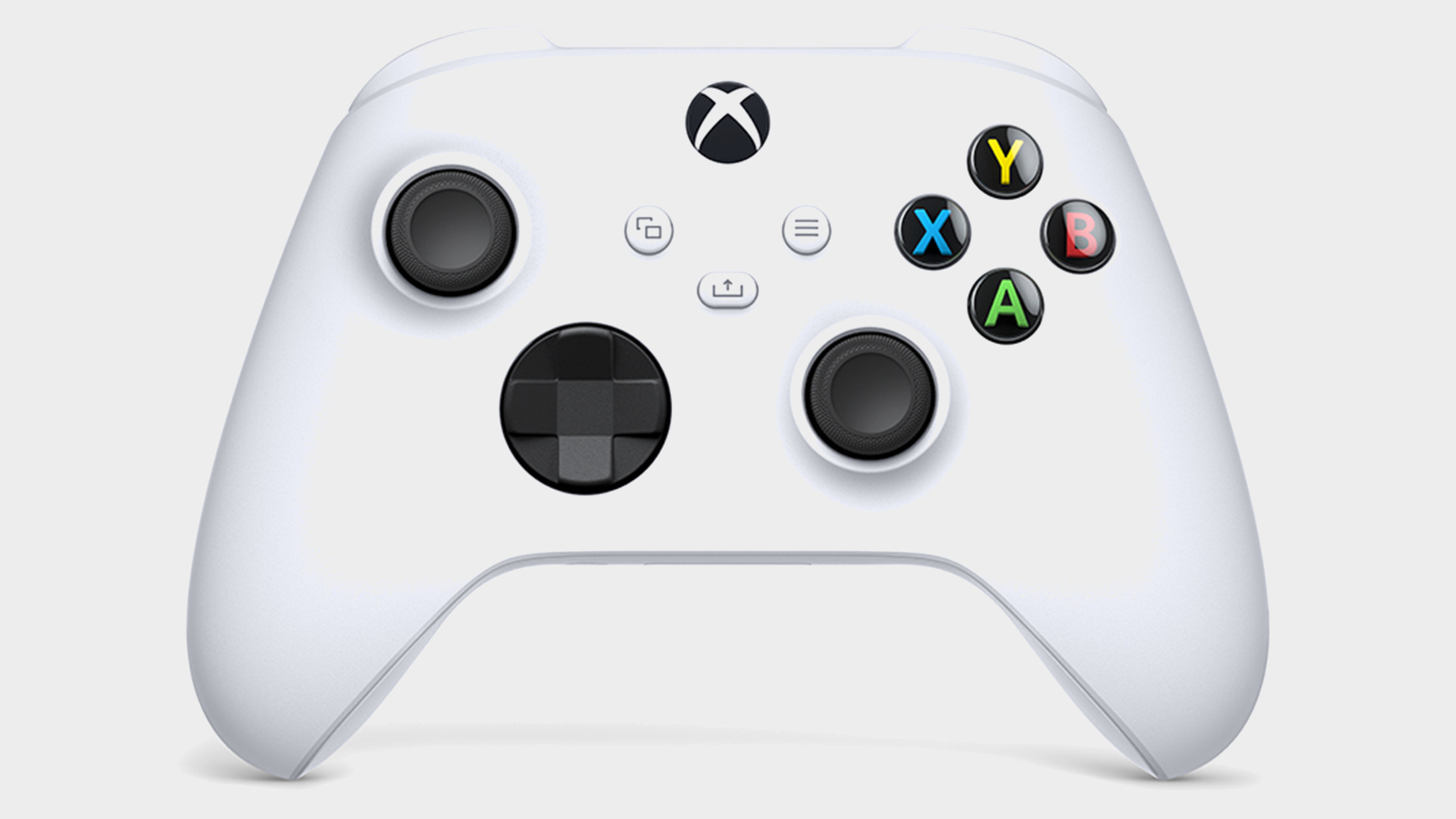
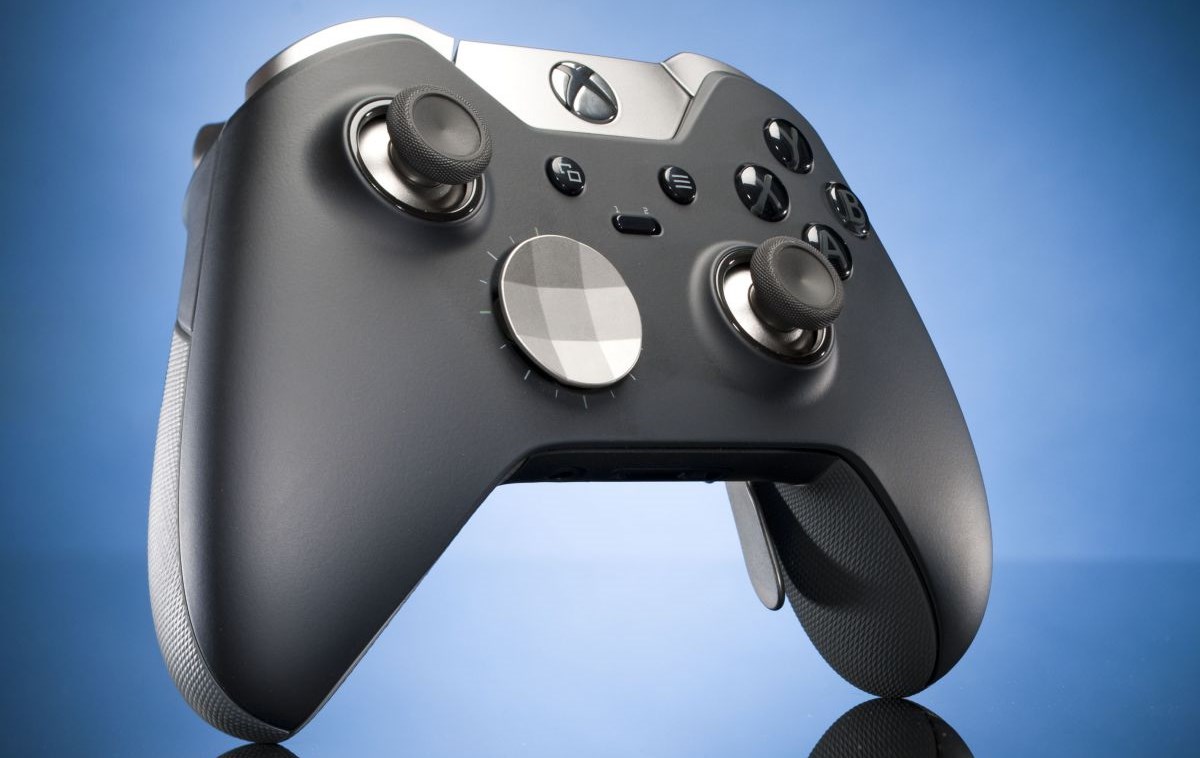
If you are trying to sync xbox series x controller to windows pc, you are in luck—these models use Bluetooth Low Energy for improved battery life and easier pairing. If you are sporting an Elite Series 2, you have the top-tier hardware already prepared for any connection method. Always check for a 3.5mm audio jack at the bottom; while its presence usually suggests a newer model, remember that audio data cannot be transmitted over Bluetooth on Windows.
Performance Comparison: Adapter vs. Bluetooth
As an editor who obsesses over frame data and response times, I cannot stress enough how much the connection method matters. While Bluetooth is "free" if your motherboard supports it, it comes with technical trade-offs that might frustrate you during a high-stakes match in Elden Ring or Call of Duty.
The gold standard is the proprietary 2.4GHz protocol used by the official adapter. According to technical benchmarks, the official Xbox Wireless Adapter for Windows supports a low-latency connection of approximately 6 milliseconds. In contrast, Bluetooth latency is variable and often higher, which can lead to perceptible input lag. Furthermore, connecting an Xbox controller to a PC via Bluetooth does not support audio transmission through the controller’s built-in 3.5mm headset jack.
| Feature | Xbox Wireless Adapter | Bluetooth Connection |
|---|---|---|
| Latency | ~6ms (Ultra Low) | Variable (Higher Lag) |
| Max Controllers | 8 Controllers | 1-2 Recommended |
| Audio Support | 3.5mm Jack & Stereo | No Audio Support |
| Range | Up to 30 feet | Up to 15-20 feet |
| Rumble/Haptics | Full Support | Basic Support |
For anyone building a local multiplayer setup, the adapter is mandatory. It allows you to connect up to eight controllers to a single PC simultaneously without the signal interference that often plagues multiple Bluetooth devices.
Method 1: Connecting via Bluetooth (Step-by-Step)
If you are looking for how to connect xbox controller to pc for a quick session and don't want to buy extra dongles, Bluetooth is the way to go. Just ensure your computer is running at least the Windows 10 Anniversary Update to ensure the drivers are current.
- Power On: Press and hold the Xbox button on the center of the controller to turn it on.
- Enter Pairing Mode: Press and hold the Pair button (the small circular button on the top edge) for three seconds. The Xbox logo will start flashing rapidly.
- Windows Settings: On your PC, open Settings and go to Bluetooth & devices.
- Add Device: Click the Add device button and select Bluetooth from the list of options.
- Finalize: Your PC will scan for nearby signals. When Xbox Wireless Controller appears, click it to finish the process.
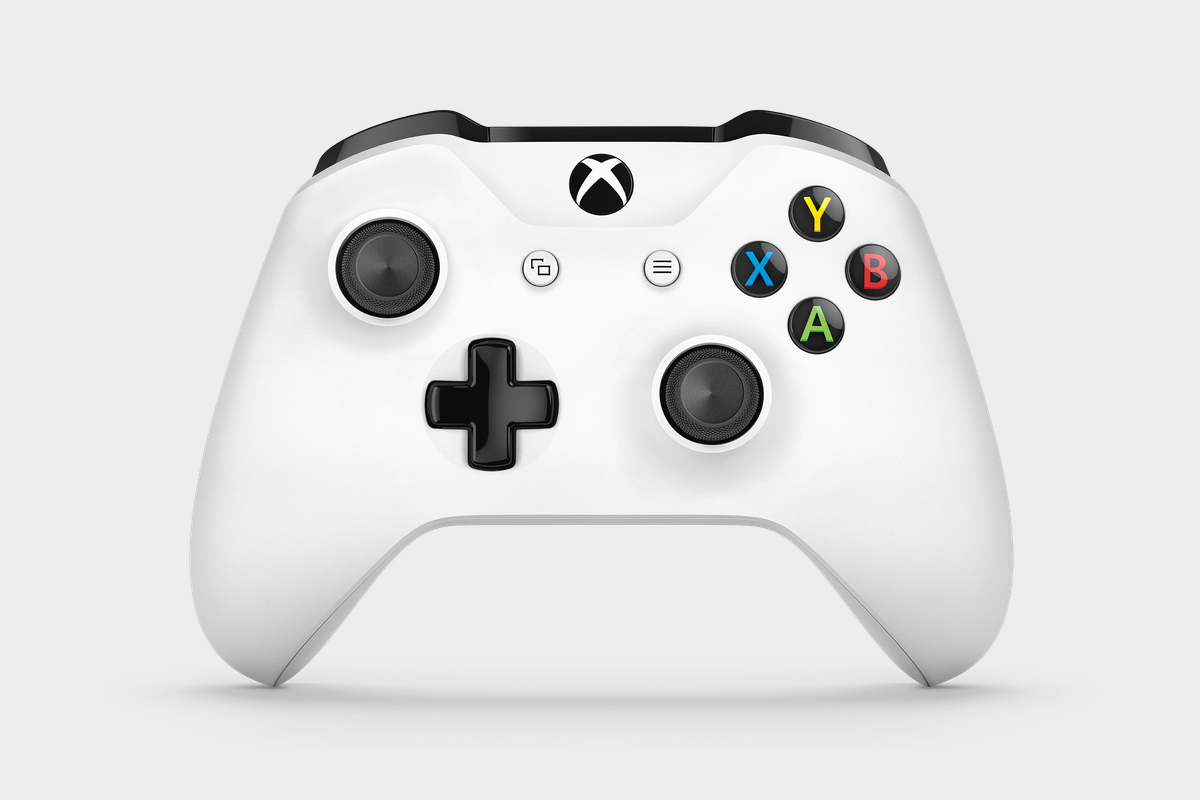
When you pair xbox one controller to pc via bluetooth, remember that Windows might occasionally lose the handshake after a system update. If the controller is paired but not working, the fastest fix is to remove the device from the Bluetooth menu and re-pair it from scratch. This method is specifically how to connect xbox one controller to pc bluetooth for those who have the post-2016 revised models.
Method 2: Using the Xbox Wireless Adapter
This is my preferred method for any serious gaming. The xbox wireless adapter for windows is a small USB dongle that brings the full Xbox console wireless experience to your desktop. It bypasses the standard Bluetooth stack entirely, using a dedicated frequency that avoids interference from your mouse or keyboard.
- Plug It In: Insert the adapter into a USB 2.0 or 3.0 port on your PC. Windows will automatically download the necessary drivers.
- Sync the Adapter: Press the button on the side of the adapter. You will see a small light start to blink.
- Sync the Controller: Turn on your controller and hold the Pair button until the Xbox logo flashes.
- Locked In: Once the lights on both the adapter and the controller stay solid, you are connected.
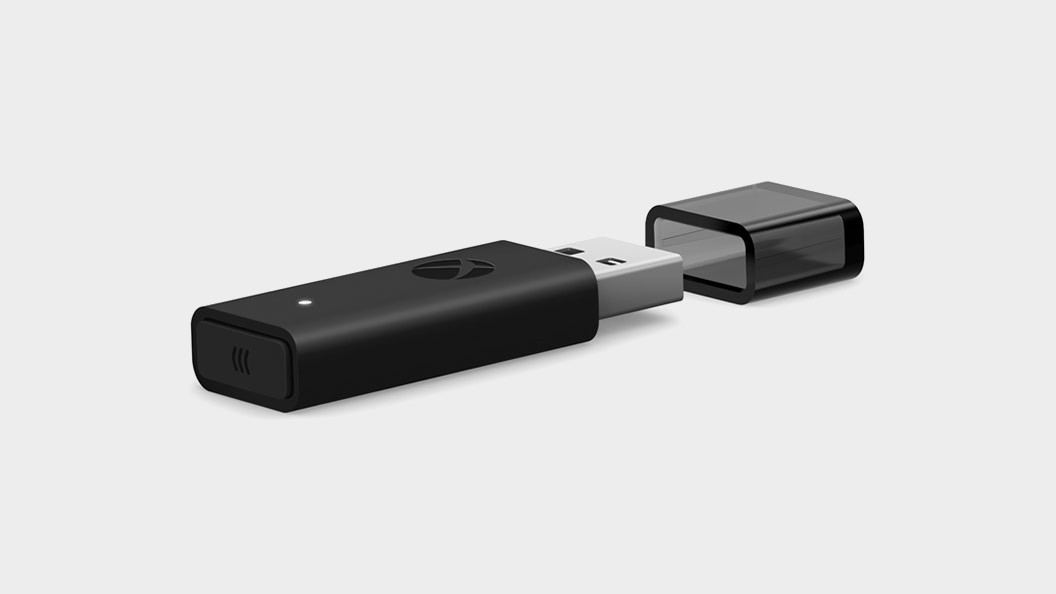
For those doing an xbox controller wireless adapter for windows 11 setup, the process is even smoother. Windows 11 includes pre-installed drivers for the adapter, making it a true plug-and-play experience. If you find the adapter is being blocked by your PC case, use the USB extender cable that usually comes in the box to bring the dongle out into the open for a better line of sight.
Troubleshooting: Fix Connection & Lag Issues
Even the best hardware hits a snag sometimes. If you find your controller keeps disconnecting or the input lag feels "mushy," the first thing you should do is check the software layer.
The Xbox Accessories app is your best friend here. Available for free in the Microsoft Store, this app allows you to perform firmware updates that Microsoft frequently releases to improve wireless stability. I recommend connecting your controller via a USB-C cable or Micro-USB cable once a month just to check for these updates. Updating the firmware can often provide an instant xbox controller not connecting to pc wireless fix.
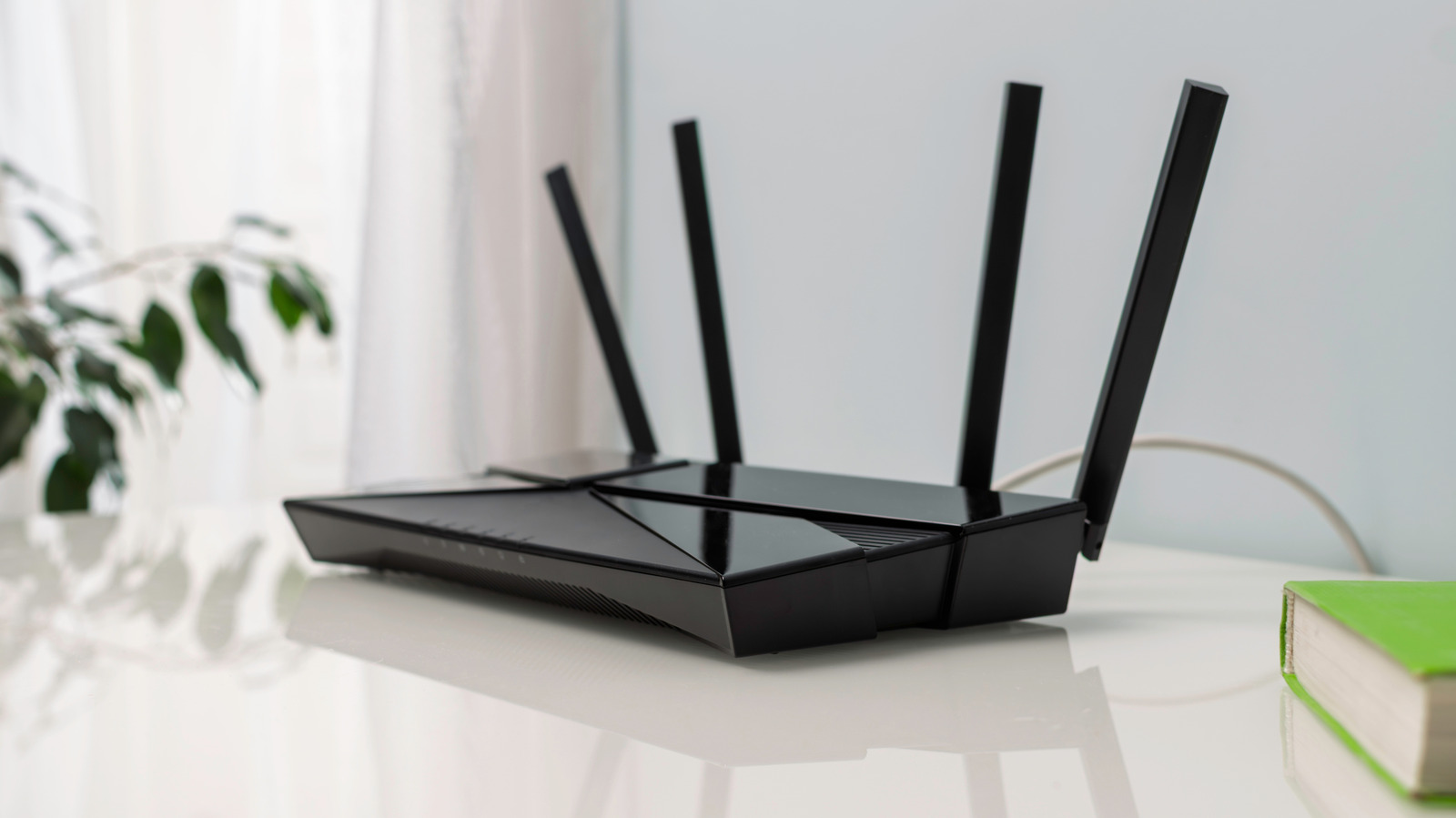
If you are experiencing signal drops, check for interference. Common culprits include 2.4GHz Wi-Fi routers placed too close to the PC or unshielded USB 3.0 external hard drives. For users trying to figure out how to use xbox 360 wireless controller on pc, keep in mind you need a specific, older receiver—the modern Xbox Wireless Adapter is not backward compatible with 360-era gamepads. Lastly, if the controller appears in Device Manager with a yellow exclamation mark, right-click it and select Update Driver to force Windows to refresh the XInput drivers.
Advanced Optimization: Gaming Copilot & Steam
Once you have established your wireless xbox controller pc connection, it is time to optimize the experience. Windows 11 introduced a fantastic feature called Gaming Copilot. This allows you to link two controllers so they act as one, which is incredible for accessibility or for helping a younger sibling through a difficult level.
Steam users have even more power at their fingertips. By entering Steam Big Picture Mode, you can access the "Controller Settings" menu to remap every single button, adjust the deadzones of your analog sticks, or even change the brightness of the Xbox button LED. Steam has played a massive role in the adoption of these gamepads; Valve reported in June 2024 that 59% of all game controller sessions on the Steam platform are conducted using an Xbox controller.
Don't forget the Xbox Game Bar (Win+G). It gives you a quick overlay to check your controller's battery level and manage your game captures without Alt-Tabbing out of your session. Between haptic feedback support and the ease of the Windows ecosystem, the Xbox controller remains the definitive choice for the modern PC gamer.
FAQ
Can I use an Xbox controller on PC wirelessly?
Yes, you can use any modern Xbox controller wirelessly on PC through two main methods. You can either use a standard Bluetooth connection if your PC and controller support it, or you can use the official Xbox Wireless Adapter for a more stable, high-performance connection.
What wireless Xbox controllers work with PC?
The Xbox Series X/S controllers, Elite Series 2, and the newer versions of the Xbox One controller (released after 2016) all support Bluetooth and the wireless adapter. Older original Xbox One controllers lack Bluetooth but can still work wirelessly if you use the Xbox Wireless Adapter for Windows.
Why won't my wireless Xbox controller connect to my PC?
Common reasons include outdated firmware, low battery, or interference from other wireless devices. Try updating the controller via the Xbox Accessories app while connected via USB, and ensure your Windows Bluetooth settings are turned on and visible to new devices.
Can I connect a wireless Xbox controller to my PC without Bluetooth?
Yes, you can use the Xbox Wireless Adapter for Windows, which uses a proprietary 2.4GHz radio signal rather than Bluetooth. This method is actually preferred by many gamers because it offers lower latency and supports features like the controller's built-in headset jack.
Why can't I play using an Xbox controller on my PC?
If your controller is connected but not working in games, it might be a driver issue or a game-specific setting. Ensure the controller is recognized in the Windows Game Controllers menu and check if your game supports XInput. Using Steam Big Picture Mode can also help force compatibility for older titles.