5 Essential iPad Settings to Change Immediately
Quick Facts
- OS Version: Optimized for iPadOS 26
- Security Superiority: Face ID is 20x more secure than Touch ID, with a 1 in 1,000,000 chance of a random unlock.
- Market Leadership: In 2024, Apple held a 38.6 percent market share in the global tablet industry.
- Battery Endurance: iPads are engineered to retain 80 percent of their original capacity after 1,000 complete charge cycles.
- Hardware Requirement: M-series chips (M1 or later) are required for full Apple Intelligence and Stage Manager external display support.
- Pro Tool: The Apple Pencil Pro features unique haptic feedback and squeeze gestures for creative professionals.
To optimize a new iPad, adjust the Display Zoom to 'More Space,' configure Stage Manager for windowed multitasking, and customize the Control Center for quick access. These ipad settings ensure a laptop-like workflow and peak hardware efficiency.
Immediate UI & Layout Fixes
Unboxing a new iPad is a thrill, but the out-of-the-box configuration is often designed for the "average" user, not the power user. The first thing I always do is fix the ipad settings screen density. By default, the iPad uses a scaling mode that makes icons and text quite large. While this is great for accessibility, it wastes the expansive glass you just paid for. By switching to the ipad display zoom more space setting, you effectively increase your digital real estate, allowing you to see more columns in your spreadsheets and more content in your web browser.
Navigation to this feature is straightforward. Go to Settings > Display & Brightness > Display Zoom and select More Space. This small change makes the iPad feel much more like a professional workstation. While you are in the display settings, ensure True Tone is active to protect your eyes during long sessions, though you might want to toggle it off if you are doing color-accurate photo editing.
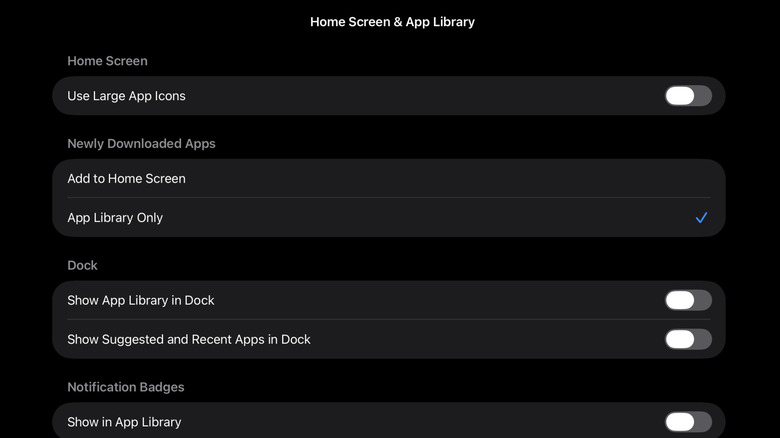
Another layout annoyance is the "App Library" creep. By default, every new app you download lands on your Home Screen, creating clutter that hides your beautiful wallpaper. To fix this, head to Settings > Home Screen & App Library. Under the "New App Downloads" section, select App Library Only. This keeps your primary workspace clean, forcing new apps into the organized folders of the App Library rather than letting them litter your primary screens. This is a foundational step in learning how to change ipad home screen layout settings for a focused environment.
Mastering Multitasking and External Displays
If you are using an iPad with an M-series chip, you have a powerhouse that can handle much more than one app at a time. The introduction of iPadOS 26 has refined how we interact with multiple windows. The ipad multitasking windowed apps setup, better known as Stage Manager, is the key to unlocking this potential. It allows you to resize windows and overlap them, creating a workflow that mimics macOS.
To enable this, swipe down from the top right to open the Control Center and tap the Stage Manager icon, or navigate to Settings > Multitasking & Gestures. Here, you can choose between Full Screen, Split View, or Stage Manager. For those who frequently connect their tablet to a monitor, this is where the ipad settings for external displays become vital. With Stage Manager active, you can extend your workspace to a secondary monitor rather than just mirroring it, allowing you to run up to eight apps simultaneously across two screens.
Apple Intelligence integration in iPadOS 26 also makes multitasking smarter. The system can now suggest app pairings based on your Focus Modes. For example, if you enter a "Work" Focus, your iPad might automatically suggest opening Slack and Notes in a Split View. This level of automation is why the iPad continues to dominate the market, even as competitors try to bridge the gap.
Customizing Input and the Control Center
The Control Center is your cockpit, yet most users leave it at the factory defaults. For a mobile editor like me, quick access to specific tools is non-negotiable. I recommend a specific set of ipad control center customization tips: add Keyboard Brightness, Quick Note, and Stage Manager toggles immediately. This allows you to adjust your hardware on the fly without digging through the main menu.
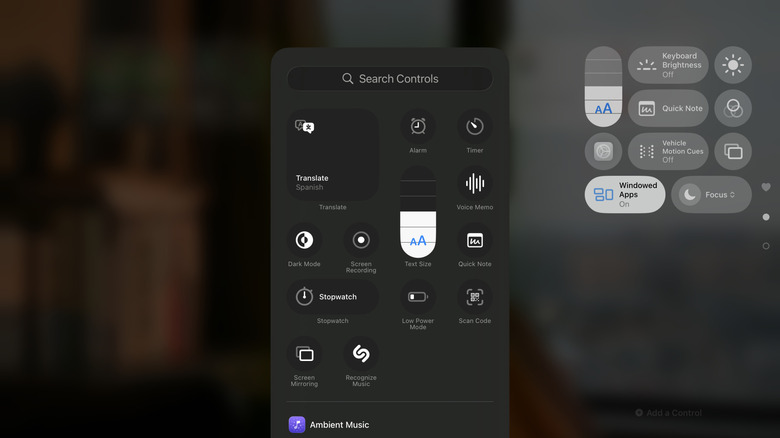
Navigate to Settings > Control Center and scroll down to "More Controls." Tap the green plus icon next to the tools you need. I find that having the "Dark Mode" and "Screen Recording" buttons there is a lifesaver when I'm switching between editorial tasks and tutorial creation.
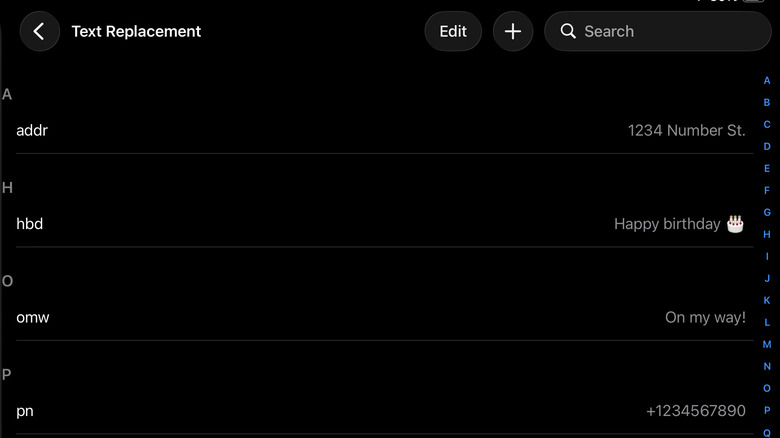
Efficiency isn't just about the UI; it's about how you input data. One of the most overlooked ipad settings is text replacement. If you find yourself typing your email address, physical address, or common professional phrases dozens of times a day, you are wasting time. Go to Settings > General > Keyboard > Text Replacement. You can create short codes, like "@@," that automatically expand into your full email address. These ipad text replacement shortcuts for faster typing sync via iCloud Syncing to your iPhone and Mac, making it a universal productivity hack.
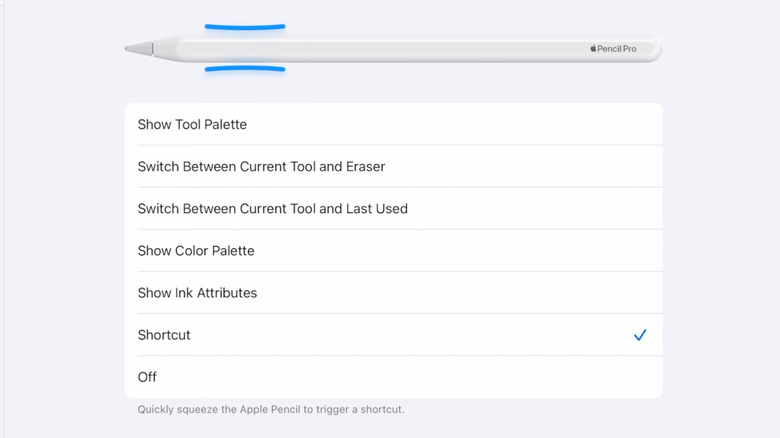
For the artists and note-takers, the Apple Pencil Pro requires its own set of adjustments. This hardware is a significant leap forward, featuring haptic feedback that makes it feel like you are clicking a real pen. However, the default squeeze sensitivity might not match your grip strength. Navigate to Settings > Apple Pencil to find the ipad apple pencil sensitivity and haptic settings. You can adjust the "Squeeze" pressure and toggle the haptic response. If you find the haptics distracting during fine detail work, you can turn them off here, though most users find that the feedback helps confirm actions without looking at the screen.
Enhancing Privacy and Communication
Your iPad is often a bridge between your personal and professional life, which makes privacy settings paramount. I always start with the ipad settings safari configuration. Apple's browser is incredibly powerful, but you should ensure "Prevent Cross-Site Tracking" is enabled to keep advertisers at bay. Additionally, check your "Private Browsing" settings. In iPadOS 26, you can require Face ID to unlock your private tabs, adding an extra layer of security for sensitive research.
Communication can be a major source of distraction. If you have synced your iPhone with your iPad, you might find your tablet ringing constantly with spam calls. I highly suggest enabling "Silence Unknown Callers." You can find this in the communication section of your settings. This sends unrecognized numbers directly to voicemail, ensuring that your deep-work sessions aren't interrupted by robocalls.
Managing your ipad settings mail is the next step. Most users default to "Push" for all accounts, which can drain battery and cause constant notification fatigue. I recommend setting non-essential accounts to "Fetch" on a 15 or 30-minute interval. This preserves your focus while still keeping you updated.
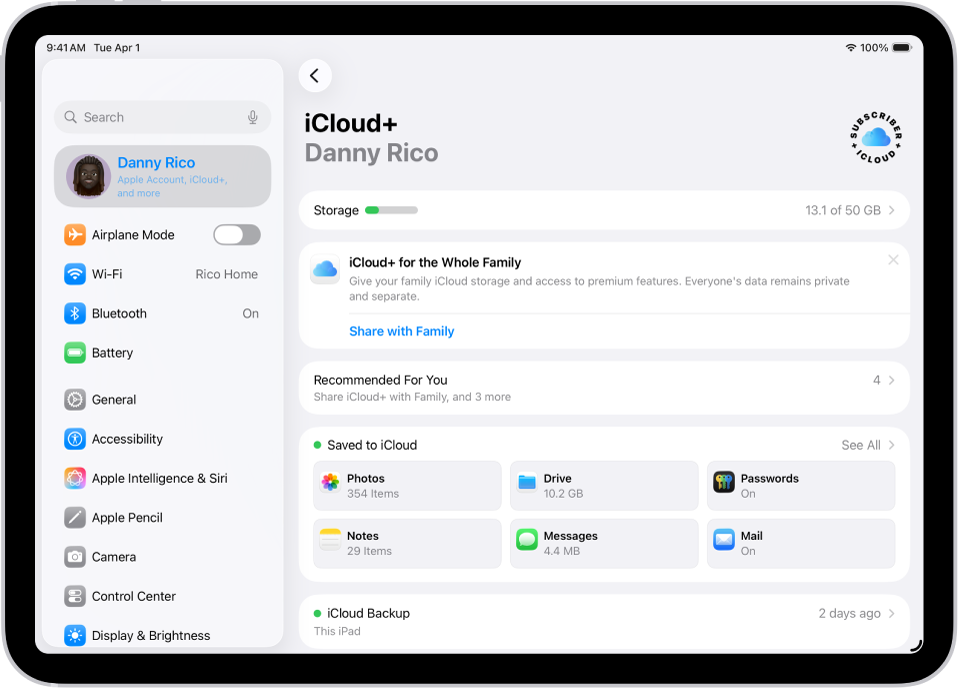
Finally, check your iCloud Syncing settings. Ensure that sensitive data like Passwords and Keychain are active, but audit which apps are using iCloud for backup. If you are near your storage limit, disabling photo sync or large game data backups can save you from paying for a higher storage tier. This central hub is where you manage your digital footprint across the Apple ecosystem.
Longevity and Intelligence Settings
The hardware in a modern iPad is designed to last for years, but only if you treat the battery with respect. Apple’s latest research shows that keeping a battery at 100% charge for long periods, especially if the device is plugged in at a desk, can accelerate chemical aging. In Settings > Battery > Battery Health, you can now set a charge limit—typically 80%. This is a game-changer for those of us who use our iPads as primary computers in a docked setup.
The security of your device is equally important. It is reassuring to know that the probability of a random person unlocking your iPad Pro using Face ID is less than 1 in 1,000,000. To ensure this works flawlessly, navigate to Settings > Face ID & Passcode and ensure "Require Attention for Face ID" is toggled on. This prevents someone from unlocking your device while you are asleep.
Lastly, with the rollout of Apple Intelligence, you need to manage your AI permissions. Navigate to the new Intelligence & Siri section in your ipad settings to configure how the device handles writing tools and ChatGPT integration. You can choose to have the iPad summarize your notifications or assist with drafting emails. However, if you are concerned about data privacy, you can toggle off specific generative features or manage the "Private Cloud Compute" settings to ensure your data stays as local as possible.
The iPad has evolved from a simple media consumption device into a complex, highly capable computer. Taking ten minutes to dial in these five areas—UI density, multitasking behavior, input shortcuts, privacy defaults, and battery health—will transform your experience from frustrated to fluid.
FAQ
How do I go to Settings on my iPad?
To access your settings, locate the silver icon that looks like a set of gears on your Home Screen or in your App Library. Alternatively, you can swipe down from the middle of the Home Screen to open Spotlight search and type the word settings to jump directly to the app.
How do I change my screen back to normal view on iPad?
If your icons or text look too small or too large, go to Settings > Display & Brightness > Display Zoom. To return to the standard iPad layout, select the Default or Standard option and tap Set. The iPad will restart its user interface to apply the changes.
How do I get my iPad back to normal browsing mode?
If Safari is showing a dark interface or isn't saving your history, you are likely in Private Browsing mode. Open Safari, tap the Tabs icon (two squares), and swipe the tab bar at the bottom to the left or right to switch from Private back to your standard Tab Groups or the main start page.
Why can't I open settings on my iPad?
If the Settings app won't open or crashes immediately, try a forced restart. Press and quickly release the volume up button, then the volume down button, and finally hold the top power button until the Apple logo appears. If the issue persists, check if you have a software update pending or if Screen Time restrictions are preventing access.