The Day-One Setup Checklist
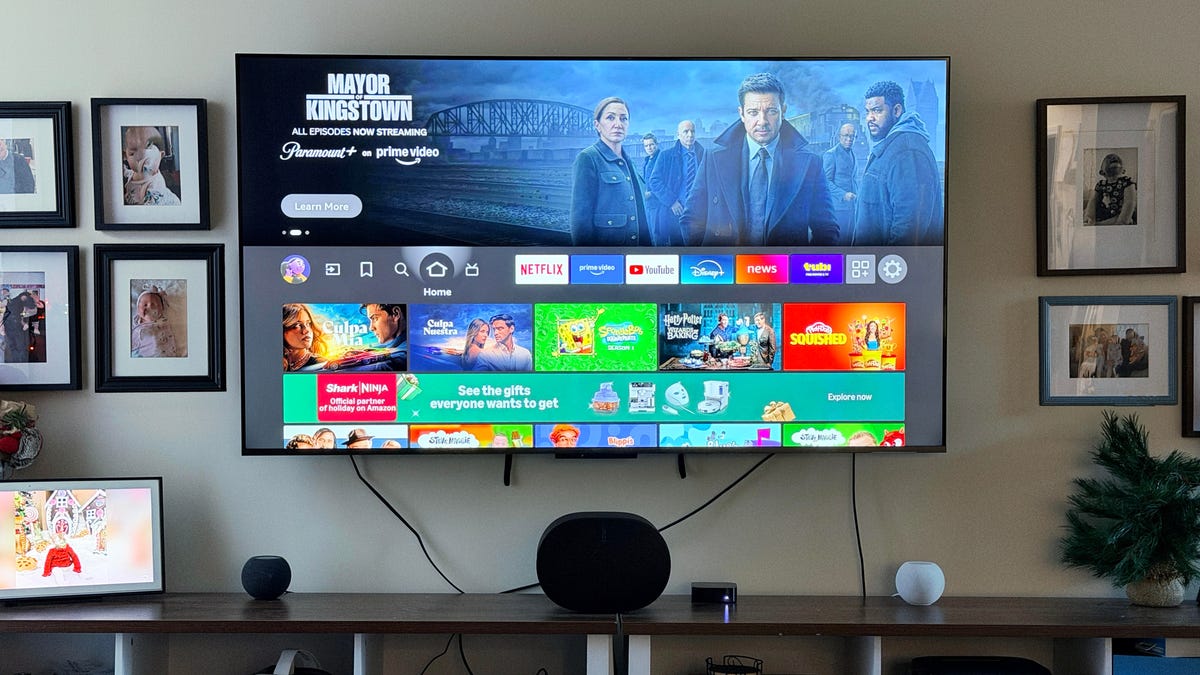
When you unbox a brand-new 4K OLED or QLED, the temptation is to plug it in, log into your Netflix account, and start streaming immediately. However, as an IoT editor, I’ve seen how "out-of-the-box" settings are often optimized for the bright lights of a showroom floor—not your living room—and certainly not for your digital privacy. Effective Smart TV setup optimization begins the moment you power on the device. To achieve optimal picture quality on a smart TV, begin by selecting the Filmmaker or Cinema preset to ensure color accuracy. Calibrate the brightness and contrast settings based on the ambient light in your room, and test the results using 4K HDR content to verify that the display is utilizing its full dynamic range.
Beyond the visuals, there is a looming safety concern that many owners overlook. A 2024 IoT security report found that smart TVs are the most vulnerable connected devices in the home, carrying a 31% risk of cyber-attack. This makes Smart TV security best practices a non-negotiable part of your installation routine. From firmware hardening to disabling invasive tracking, these four tricks will transform your "dumb" factory settings into a secure, high-fidelity home cinema experience.
1. Lockdown Your Hardware: Firmware and Router Hardening
The first thing your TV wants to do is connect to Wi-Fi. Before you let it, ensure your home network is ready. Your smart TV is essentially a computer with a massive screen, and like any computer, it has vulnerabilities. Secure your smart TV by installing the latest firmware updates immediately after unboxing to patch known security vulnerabilities. Many users ask, "why should I update my smart tv firmware right away?" The answer is simple: manufacturers frequently release patches for "zero-day" exploits that were discovered after the TV left the factory.
There are two primary ways to handle this:
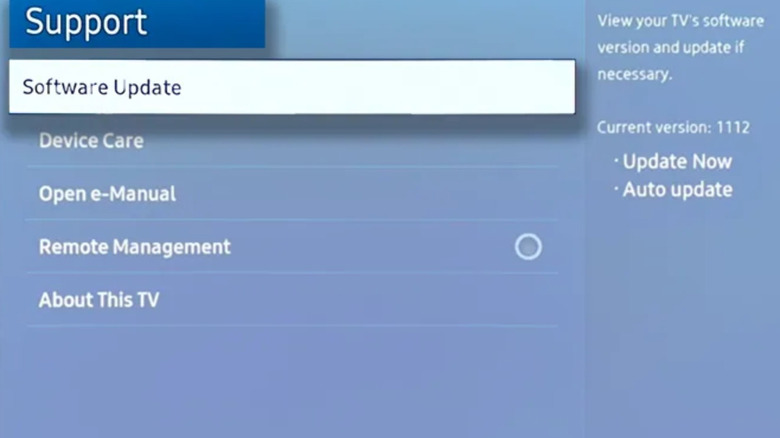
- Over-the-Air (OTA) Updates: This is the easiest method. Navigate to Settings > Support > Software Update and select Update Now. Ensure you enable "Auto-Update" to stay protected in the future.
- USB Manual Update: If your Wi-Fi is spotty or you want a cleaner installation, download the firmware from the manufacturer's website onto a USB drive.
Pro-Tip: When using the USB method, ensure the drive is 32GB or smaller and formatted to FAT32. Most TVs will not recognize the higher-capacity exFAT or NTFS formats for system updates.
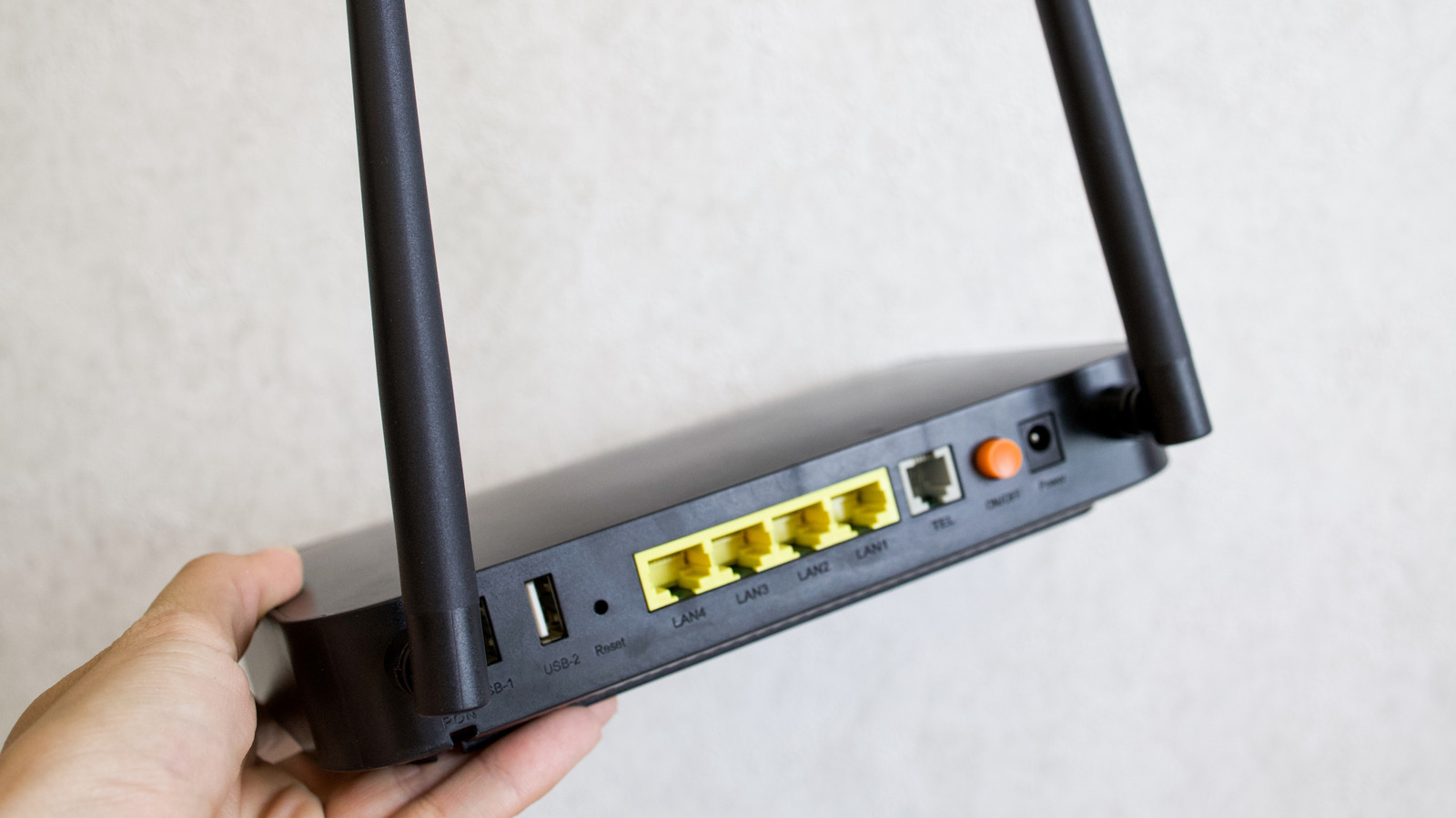
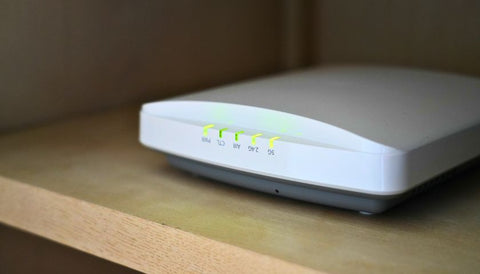
The best way to secure smart tv from hackers actually starts at the router level. Ensure your router is using Wi-Fi Encryption standards like WPA3 (or WPA2 if you have older devices). It is also essential to change the default passwords provided by the manufacturer and use strong, unique credentials. If your router supports it, place your smart TV on a "Guest Network." This isolates the TV from your main computer and phone, meaning that if a hacker does manage to exploit a vulnerability in the TV's software, they won't have a direct path to your personal banking data or private files.
2. Stop the Spying: Disabling Automatic Content Recognition (ACR)
Most users are unaware that their TV is watching them back. A technology called Automatic Content Recognition (ACR) identifies every show, movie, and even advertisement you play on your screen by capturing digital "fingerprints" of the content every 10 milliseconds. This data is then sold to advertisers to build a profile of your viewing habits. While this is marketed as a way to provide "personalized recommendations," it is fundamentally an invasion of privacy.
Protecting privacy on smart tv with camera and microphone hardware is equally vital. If your TV has a physical camera for video calls, check if there is a manual shutter. If not, a simple piece of black electrical tape is a low-tech but highly effective security measure. To disable the software tracking, you’ll need to dive into the Privacy Settings of your specific brand:
- Samsung: Go to Settings > Support > Terms & Privacy > Privacy Choices. Look for "Viewing Information Services" and disable it.
- LG: Navigate to Settings > All Settings > General > About This TV > User Agreements. Uncheck "Live Plus" and "Interest-Based Advertisement."
- Sony (Google TV): Go to Settings > System > About > Legal Information. You can opt-out of "Sony Smart TV Services" and "Interactive TV Settings."
By opting out of these features, you reclaim your data and reduce the background processing load on your TV's CPU, which can sometimes lead to a snappier user interface.
3. Visual Fidelity: Calibration Beyond the Presets
Most TVs ship in "Vivid" or "Store Demo" mode. These settings crank the brightness to 100% and over-saturate colors to make the screen pop under harsh fluorescent lights. In a home environment, this looks artificial and loses detail in the highlights and shadows. To truly improve TV picture quality, you need to understand the nuances of display calibration.
The most important step is choosing the right picture preset for movies. For 90% of users, the best choice is Filmmaker Mode or Cinema/Movie Mode. These presets are designed to adhere to the D65 white point and the color standards used by Hollywood colorists.
When learning how to calibrate new smart tv for best picture, follow these steps:
- Turn off "Motion Smoothing": Often called "Auto Motion Plus" (Samsung) or "TruMotion" (LG), this creates the "Soap Opera Effect," making cinematic films look like cheap home videos. Turn it off to maintain the original 24fps film cadence.
- Adjust Brightness and Contrast: Use a "dark scene" test. Find a movie with deep shadows (the opening of The Batman or scenes from Dune are excellent for this). Adjust the brightness until the blacks look deep and inky but you can still see the texture in dark clothing or hair.
- Enable HDR and Dolby Vision: If you are watching 4K HDR content, the TV should automatically switch modes. Ensure "HDMI Ultra HD Deep Color" is enabled in your port settings to allow the full 10-bit or 12-bit color depth to pass through.
4. Seamless Integration: HDMI-CEC and Audio Clarity
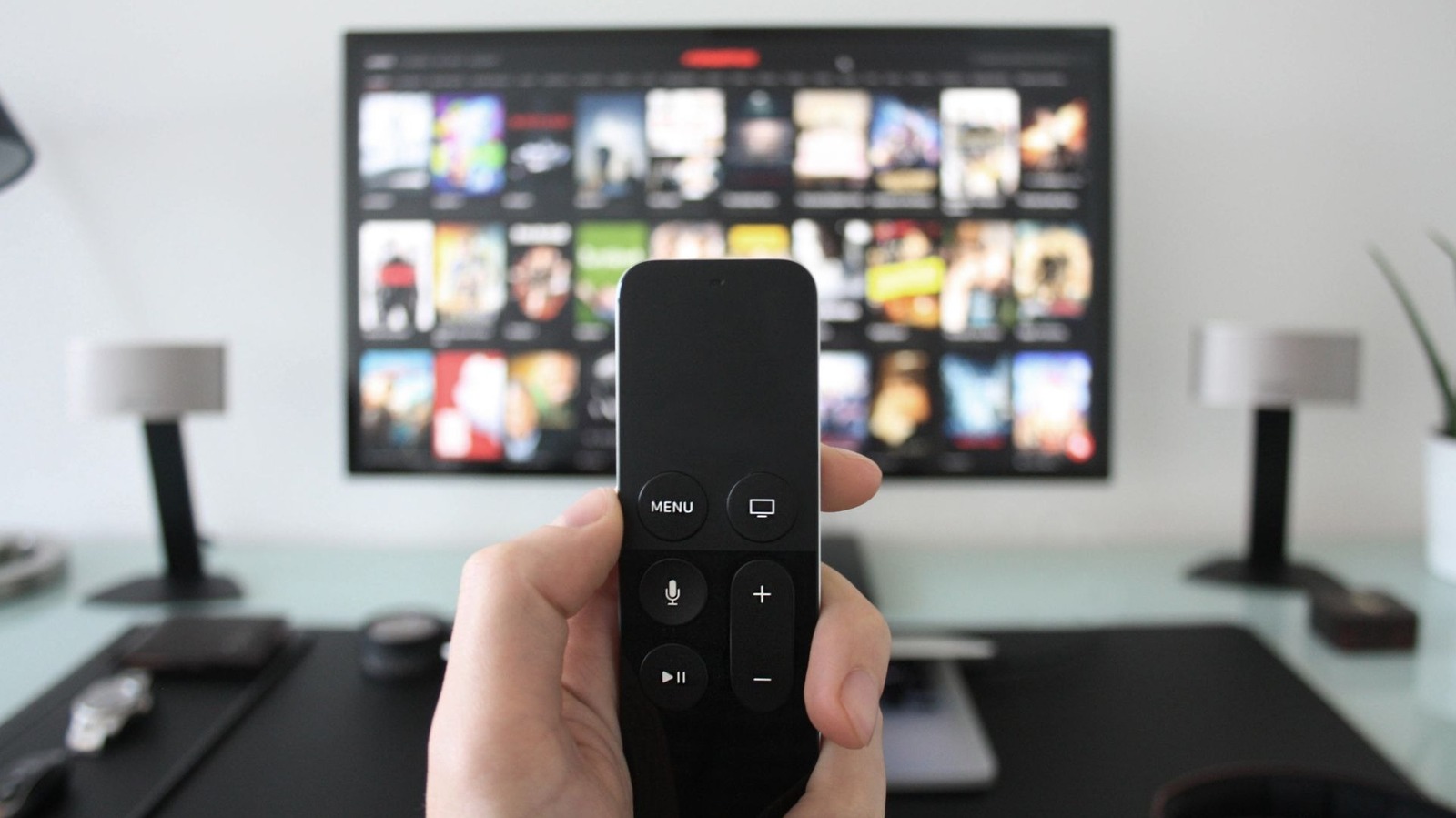
Modern home theaters are complex, often involving a TV, a soundbar, a gaming console, and a streaming stick. Managing four different remotes is a headache. This is where an HDMI-CEC settings guide becomes essential. Consumer Electronics Control (CEC) allows devices connected via HDMI to communicate with each other. When you turn on your PlayStation, the TV automatically switches to the correct input and turns on your soundbar.
Each manufacturer uses a different marketing name for HDMI-CEC. Use the following table to find it in your menu:
| Brand | Marketing Name for HDMI-CEC |
|---|---|
| Samsung | Anynet+ |
| LG | SimpLink |
| Sony | BRAVIA Sync |
| Vizio | CEC |
| Panasonic | VIERA Link |
To how to enable hdmi cec on samsung and lg, look under Settings > General > External Device Manager (Samsung) or Settings > Connection > HDMI Device Settings (LG).
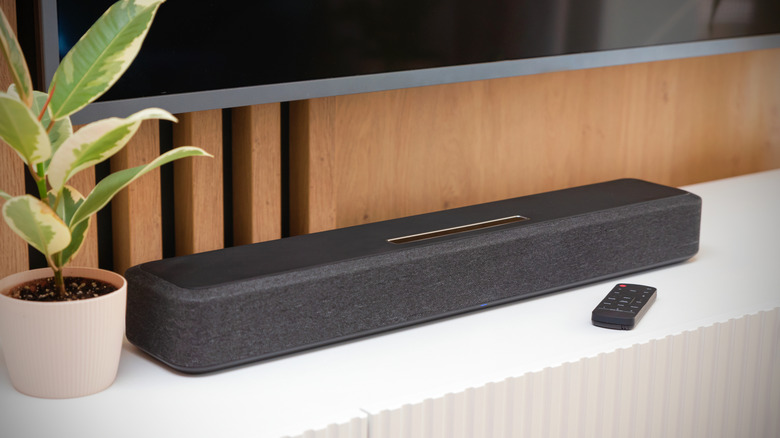
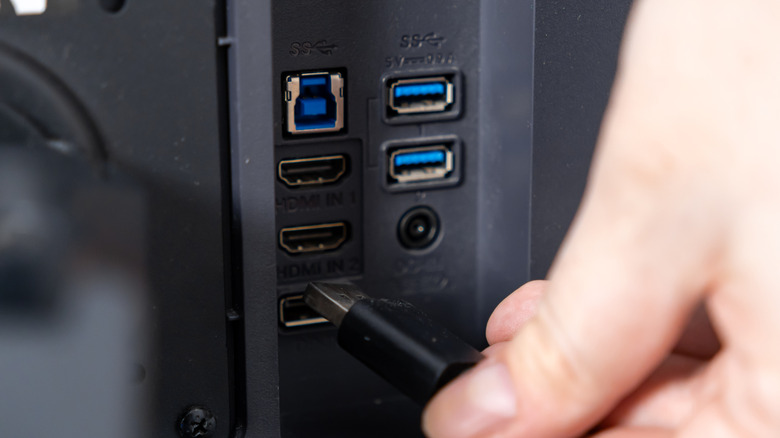
While the picture is half the battle, audio is the other half. Most modern TVs are incredibly thin, which means there is no physical room for high-quality speakers. For a more streamlined home theater experience, adding a dedicated soundbar can significantly improve dialogue clarity and low-end audio performance. Ensure you connect your audio device to the HDMI-ARC or eARC port. This specific port is designed for high-bandwidth audio return, supporting formats like Dolby Atmos with low latency.
FAQ
Does disabling Wi-Fi completely prevent tracking?
Yes, if the TV is not connected to the internet, it cannot send ACR data or "fingerprints" to external servers. However, this also disables your ability to use built-in streaming apps and receive critical security firmware updates. A better middle ground is to keep the internet connection but disable the privacy-invasive settings individually.
Why does Filmmaker Mode look "yellow" or dark?
Filmmaker Mode targets a warm color temperature (6500K), which is the industry standard for cinema. Most "Standard" or "Vivid" modes use a very cool, blueish tint that looks "brighter" to the human eye but is color-inaccurate. It may take 24–48 hours for your eyes to adjust to the natural warmth of Filmmaker Mode, but once they do, you'll notice much more realistic skin tones and environmental details.
Can I use HDMI-CEC with any HDMI cable?
While most standard HDMI cables support CEC, for the best results with modern 4K HDR and eARC features, you should use "High Speed" or "Ultra High Speed" (HDMI 2.1) certified cables. This ensures there is enough bandwidth for both the control signals and the high-fidelity video/audio data.
Conclusion
Optimizing your smart TV is about more than just a "pretty picture"—it's about creating a secure, integrated environment where your technology works for you, not the other way around. By following these Smart TV setup optimization steps, you ensure that your display is calibrated for cinematic excellence while your home network remains shielded from the growing 31% risk of cyber-attacks.
Whether you are disabling ACR to protect your privacy or fine-tuning your HDMI-CEC settings to simplify your life, these "day-one" tricks will provide a foundation for years of high-quality entertainment. Remember, your smart TV is the centerpiece of your connected home; treat it with the same security and performance scrutiny you would your smartphone or laptop.