Most of us treat our smart TVs like a digital window—something we look through to watch movies or catch the latest game. We spend hours researching panel types, refresh rates, and HDR formats, only to plug the TV in and never touch the settings again. But here is the secret most manufacturers don't broadcast: your TV isn't just a screen; it’s the most powerful computer in your living room, and you’re likely only using about 20% of its capabilities.
The shift from a "dumb screen" to a "Smart Hub" means your television can now replace your gaming console, act as a professional colorist for your movies, and even serve as a high-tech security monitor. To truly optimize your smart TV setup, you need to look beyond the pre-installed apps and dive into the hidden tools designed to create a seamless, integrated smart home experience.
1. Professional Picture Calibration (Without the Pro Price Tag)
If you have ever walked into an electronics store and wondered why the TVs there look so much better than the one in your living room, the answer isn't always the price tag—it’s the calibration. Traditionally, getting a "perfect" picture required hiring a professional with expensive light meters and software. However, modern sets from Samsung and LG now include hidden calibration tools that use your smartphone to do the heavy lifting.
Samsung’s Smart Calibration and LG’s AutoCal integration allow you to align RGB output, white balance, and gamma levels using the sensors already built into your iPhone or Galaxy device. This process adjusts the TV's internal look-up tables to ensure that the colors you see are exactly what the director intended.
Basic vs. Professional Mode
Depending on how much time you have and how deep you want to go, you can choose between two levels of optimization:
| Feature | Basic Mode | Professional Mode |
|---|---|---|
| Duration | 15–30 Seconds | 5–8 Minutes |
| Complexity | Automated light check | Detailed 20-point white balance |
| Environment | Standard lighting | Pitch black room required |
| Hardware | Compatible Smartphone | Smartphone + Tripod (recommended) |
To perform Smart TV picture calibration on a Samsung set, you simply open the SmartThings app, select your TV, and choose "Smart Calibration." Samsung’s Professional Mode requires 5–8 minutes to perform a detailed picture optimization using your smartphone’s camera sensor. You hold the phone up to the screen while it flashes various colors and patterns, and the app calculates the necessary adjustments in real-time.
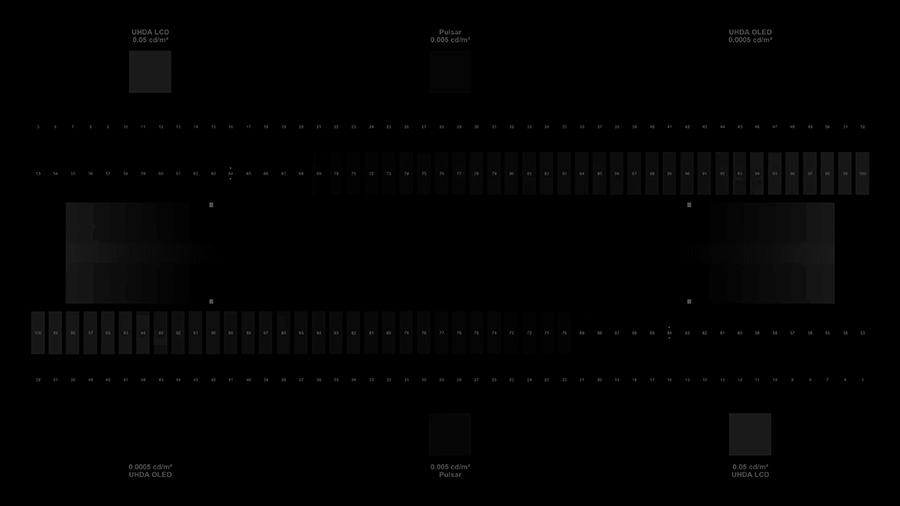
Jessica’s Tip: If you’re using Professional Mode, make sure to turn off all the lights in the room. Even a small lamp can throw off the sensor’s reading, leading to a tint that looks "off" once you finish.
2. Console-Free Gaming: The Xbox App Integration
For years, the "holy trinity" of a living room setup was a TV, a soundbar, and a gaming console. But the hardware landscape is shifting. One of the most powerful hidden tools in modern Samsung and LG TVs is the native Xbox App, which allows you to stream Xbox on TV without a console.
This is made possible through cloud gaming. Instead of the TV processing the heavy graphics of a game like Halo or Forza, a server in the cloud does the work and streams the video directly to your screen. This saves space, reduces heat in your media cabinet, and allows for a much cleaner aesthetic.
Setup Requirements for Console-Free Gaming
To get this running smoothly, you need to meet a few specific technical benchmarks. It isn't just about having the app; it's about the infrastructure behind it.
- A Compatible TV: Most Samsung Smart TVs from 2022 onwards and select LG models.
- A Controller: Any Bluetooth-enabled controller, such as an Xbox Series X|S controller or even a PlayStation DualSense.
- Game Pass Subscription: An Xbox Game Pass Ultimate subscription is required to access the library.
- The Connection: This is the deal-breaker. Streaming Xbox games directly to a smart TV requires a minimum stable internet connection speed of at least 20Mbps for optimal performance.
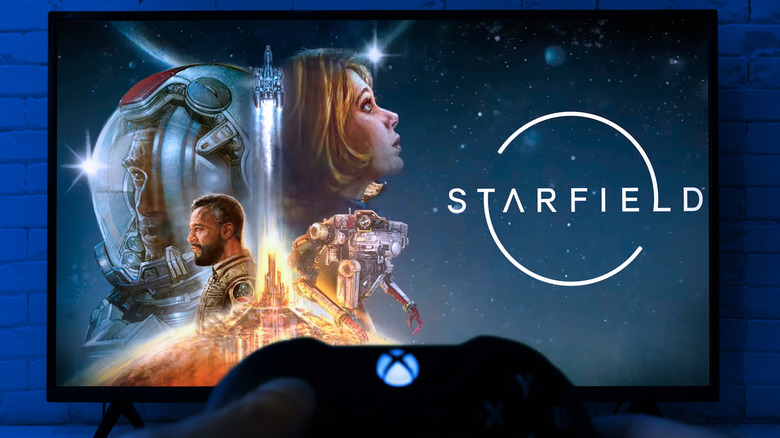
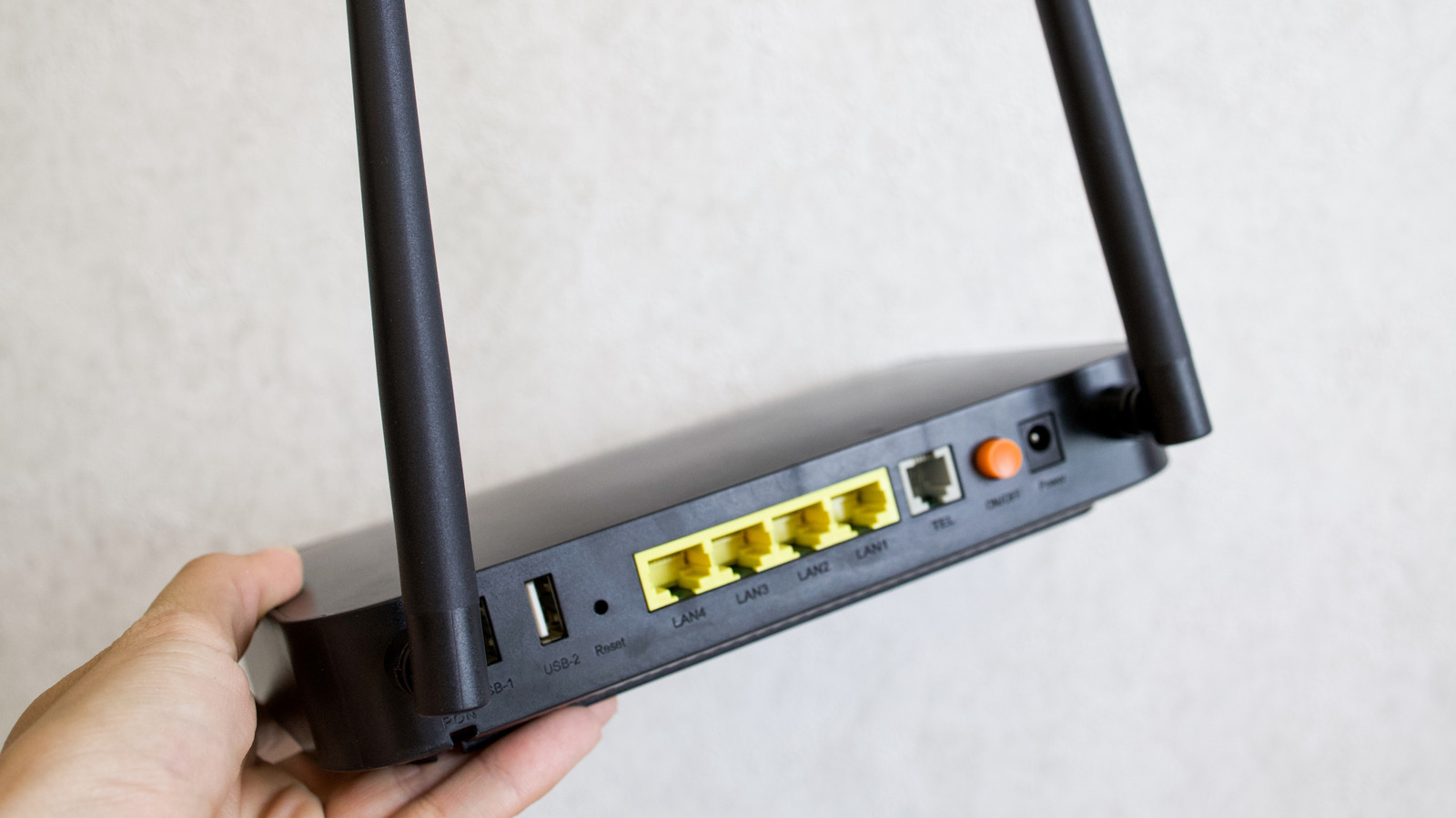
If you find that your games are lagging or looking blurry, I always recommend hardwiring your TV with an Ethernet cable. While 5GHz Wi-Fi is technically fast enough, the physical cable provides the stability needed for low-latency gaming.
3. The Living Room Security Monitor: Smart Home Dashboard
As an IoT editor, I’m obsessed with integration. One of the most underutilized features of a smart TV is its ability to act as a secondary "hub" for your security system. Instead of fumbling for your phone when someone rings the doorbell while you're mid-movie, you can view Ring Doorbell footage on a smart TV instantly.
On Samsung TVs, this is handled via the SmartThings dashboard. Once your Ring account is linked to SmartThings, you can set up a "Picture-in-Picture" (PiP) notification. When the doorbell rings, a small window appears in the top corner of your TV screen showing the live video feed, allowing you to see the delivery driver without pausing your show.
Hands-Free Voice Commands
If you aren’t using a Samsung TV, you can still achieve this via Alexa or Google Home integration. By linking your TV to your preferred smart assistant, you can use voice commands for hands-free security:
- Alexa Users: Say, "Alexa, show me the front door," and the TV will automatically switch to the camera feed.
- Google Home Users: Say, "Hey Google, show camera on the Living Room TV," to cast the feed directly.
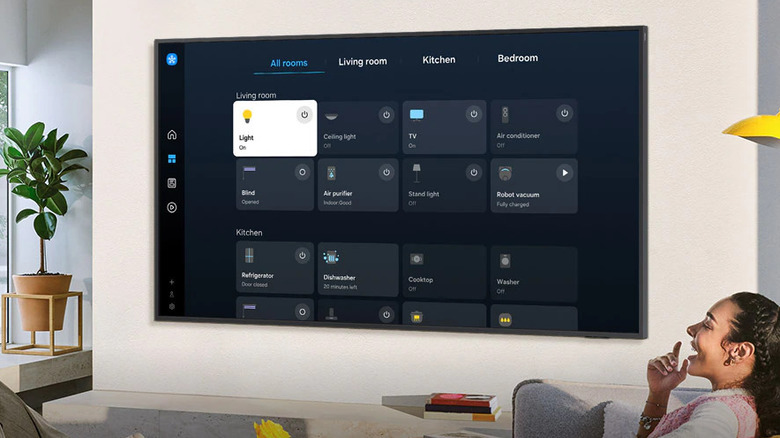
This turns your TV into a central command center. Beyond security, these dashboards allow you to control your smart lights, check the status of your smart laundry machine, or even adjust the thermostat—all from the comfort of your couch.
4. Digital Art Gallery: Custom Screensavers & Ambient Modes
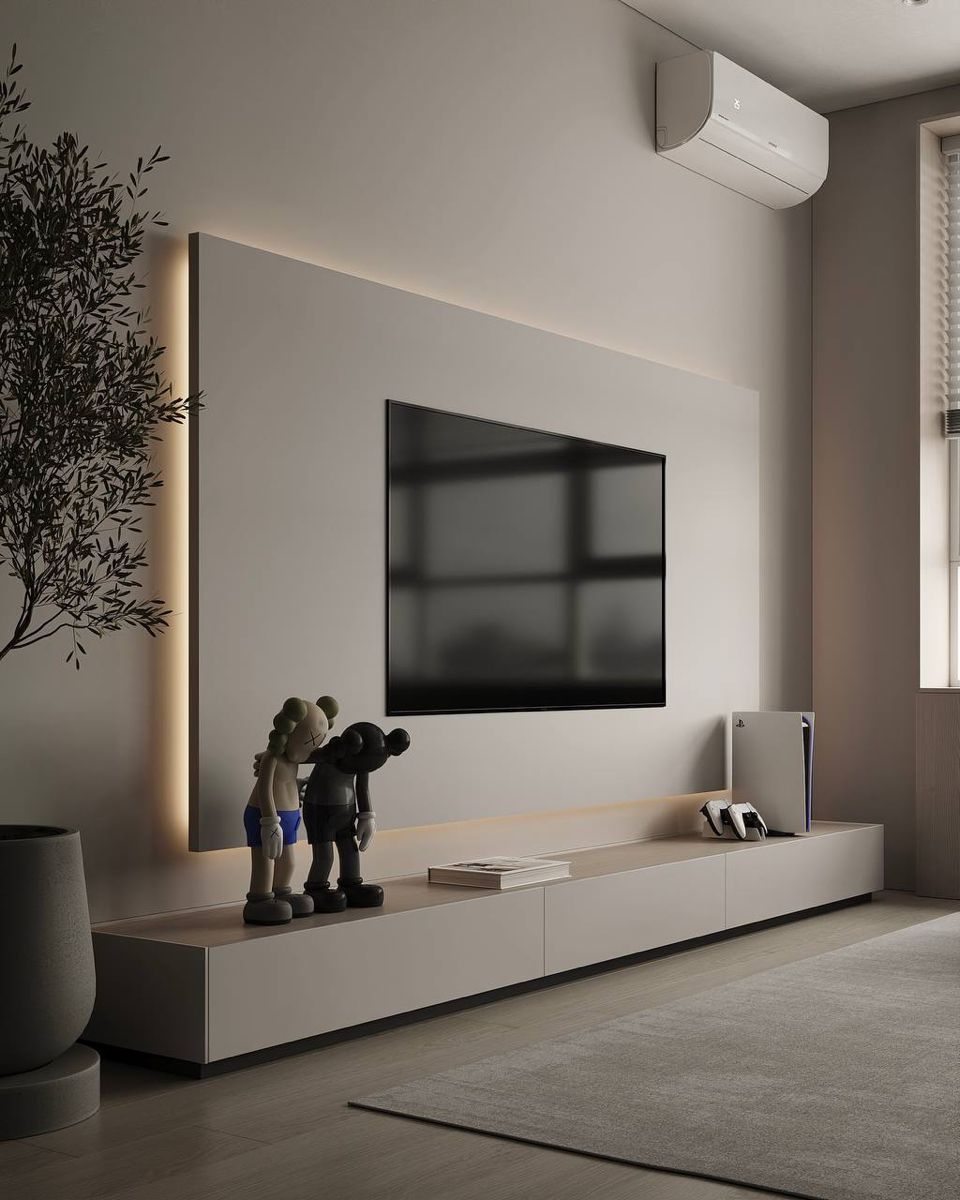
The biggest problem with a 65-inch or 75-inch TV is that when it's off, it’s just a giant "black mirror" that dominates the room's decor. To truly optimize your smart home environment, you should utilize the hidden Ambient Modes or Art Modes built into your OS.
Instead of a black screen, you can turn your TV into a canvas. While Samsung’s "The Frame" is famous for this, almost every modern smart TV has a version of this tool hidden in the settings.
How to Customize Your Canvas
You don't have to stick to the pre-loaded stock photos of mountains and forests. You can integrate your own personal library:
- Google/Amazon Photos Sync: Connect your Google Photos account (on Android/Google TVs) or Amazon Photos (on Fire TVs) to cycle through your family vacations or professional photography.
- USB Sideloading: For older models, you can load high-resolution images of classic paintings onto a USB drive and set them as a slideshow.
- Motion Sensors: To prevent wasting electricity, check your settings for "Motion Detection." Most high-end sets can be programmed to only activate the art mode when they sense movement in the room.
By utilizing these sensors, you ensure that the TV only consumes power when someone is there to appreciate the art. It’s a small tweak that significantly upgrades the "vibe" of your living room while maintaining energy efficiency.
FAQ
Which TV models are compatible with the Xbox app? Currently, the native Xbox app is available on 2022 and newer Samsung Smart TVs and monitors, as well as select 2023 LG OLED and QNED models. For older TVs, you would still need an external device like a Fire TV Stick 4K Max or a console.
Is my privacy at risk when using the phone sensor for calibration? Calibration apps generally only access the light and color sensors of the camera to measure the TV screen. However, you should always check the app permissions. Samsung’s SmartThings uses an encrypted connection, and the camera data is used locally for the calibration process and typically isn't stored in the cloud.
What if I don't like the look of my TV after calibration? Don't worry—calibration isn't permanent. Every smart TV has a "Reset Picture Settings" option in the expert settings menu. If the professional calibration looks too warm or dark for your personal taste, you can revert to the factory defaults with one click.
Ready to Level Up Your Setup?
Optimizing your smart TV setup isn't about buying new hardware; it's about mastering the tools you already own. By taking eight minutes to calibrate your screen, setting up your Xbox app, and integrating your security cameras, you transform a simple display into a comprehensive home hub.
Start with the calibration today—you’ll be surprised at how much detail you’ve been missing in your favorite films.