Most people see the back of their router as a multi-purpose hub, similar to the side of a laptop or a dedicated charging station. It is a tempting sight: those unused USB ports and empty Ethernet sockets just waiting to be filled. However, in my years of testing smart home ecosystems and troubleshooting home automation setups, I’ve discovered that treating your router like a Swiss Army knife is the fastest way to kill your internet speed and leave your digital front door wide open. Whether it’s a "set it and forget it" external drive or a smartphone you’re just trying to top off, specific devices can turn your high-speed Wi-Fi into a stuttering mess. Understanding the delicate balance of your home network is the first step toward a truly seamless smart home experience.
1. External Hard Drives and Unsecured Flash Drives
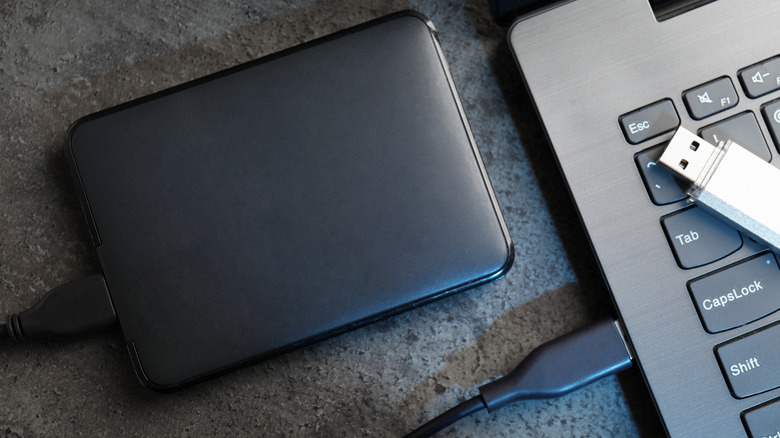
It’s a common scenario: you have an old 1TB external hard drive lying around and you realize your router has a USB port. The logic seems sound—plug it in and create a "poor man’s NAS" (Network Attached Storage) to share movies and photos across the house. In reality, you are likely creating a massive security hole. Plugging external hard drives into a router can expose your files to security risks due to outdated protocols like SMBv1 and a lack of built-in encryption.
Unlike a dedicated NAS from brands like Synology or QNAP, which have robust, frequently updated operating systems, the file-sharing software on most consumer routers is an afterthought. Most concerning is the reliance on legacy protocols. Approximately 65% of legacy home routers still default to the insecure SMBv1 protocol for USB file sharing. This protocol is decades old and was the primary vector for the infamous WannaCry ransomware attacks. When you enable this feature, you aren't just sharing files; you're often broadcasting an invitation to malware that can then spread laterally to every other connected device in your home.
Warning: The SMBv1 Risk If your router’s settings page mentions "SMBv1" or "CIFS" for USB sharing, disable it immediately. These protocols lack the modern encryption necessary to protect your data from even basic network scanning tools used by hackers.
Furthermore, routers typically lack the processing power to handle file encryption. This means that even if you set a password, the data moving from the drive to your laptop might be traveling in "clear text" across your local network. For anyone serious about home security, a router's USB port should be considered a "dead zone" for sensitive data.
2. Smartphones and High-Power USB Accessories
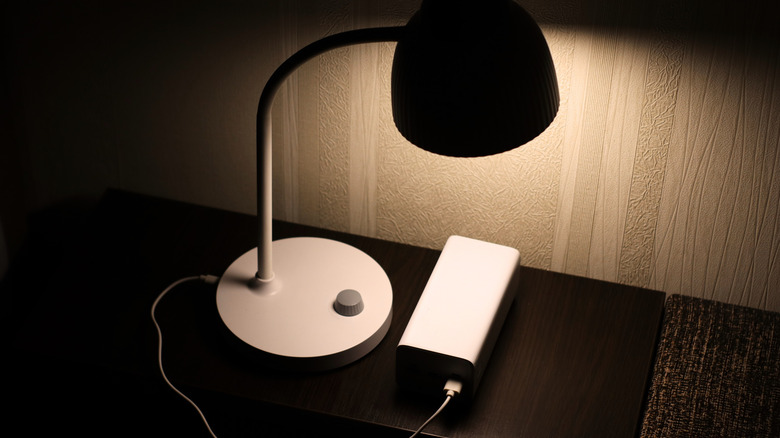
We have all done it—running out of outlets near the desk and reaching for the router's USB port to charge a phone or power a desk fan. It seems harmless, but routers are precision instruments designed to move data, not electricity. Most router USB ports are rated for a mere 4.5 to 7.5 watts. Charging smartphones or high-power USB accessories via a router can lead to overheating, which triggers CPU throttling and significantly slows down internet speeds.
When a device draws more power than the port is comfortably designed to provide, the internal components of the router begin to heat up rapidly. To prevent a catastrophic hardware failure, the router’s firmware will automatically "throttle" or slow down the main processor. Since that processor is responsible for managing your Wi-Fi signal, routing packets, and maintaining your firewall, everything takes a hit. Your 500Mbps connection can suddenly feel like dial-up, all because your router is struggling to stay cool while charging your iPhone.
Beyond smartphones, I often see "desk life" accessories plugged into routers:
- USB-powered fans: These create electrical noise that can interfere with the router's internal circuitry.
- LED light strips: These draw a constant, heavy current that keeps the router's power supply under perpetual stress.
- Battery power banks: These are the worst offenders, often trying to pull maximum wattage for hours at a time.
If you notice your router feels hot to the touch, check its USB ports. Removing these power-hungry "parasites" is the easiest troubleshooting step you can take to reclaim your network stability.
3. High-Traffic DIY NAS Setups
Even if you aren't worried about the security risks mentioned in section one, the performance cost of using a router as a makeshift NAS is staggering. Using a router as a makeshift NAS for heavy file transfers increases the load on its low-powered CPU, causing network instability and frequent disconnects.
A router's primary job is "Layer 3" networking—moving small packets of data from the internet to your devices. File sharing, however, requires "Layer 7" application processing, which is far more taxing. Tests indicate that heavy USB storage operations on budget consumer routers can reduce total Wi-Fi throughput by up to 35% due to CPU bottlenecks. While you are busy backing up your 4K video library to that USB drive, the rest of your family will experience massive lag in Zoom calls or online gaming.
If you truly need shared storage, I always recommend a dedicated NAS. Here is why:
- Dedicated Hardware: A NAS has its own CPU and RAM specifically optimized for moving large files.
- Redundancy: NAS devices support RAID, protecting your data if a drive fails.
- Network Health: By moving the file-transfer load off the router, your Wi-Fi remains dedicated to what it does best: providing high-speed internet.
4. Signal-Squelching Appliances (Microwaves and Baby Monitors)
Not every "dangerous" device is something you plug into the router; some are dangerous simply by existing near it. This is the realm of electromagnetic interference (EMI). The 2.4 GHz frequency, which many smart home devices rely on for its long range, is an incredibly crowded neighborhood.
Common household items like microwave ovens, older baby monitors, and cordless phones act as unintentional "jammers." When you turn on a microwave, it leaks a small amount of radiation in the 2.4 GHz spectrum. This is enough to completely drown out the relatively weak Wi-Fi signal your router is sending to your smart plug or kitchen tablet.
| Frequency Band | Range | Speed | Interference Risk | Best For |
|---|---|---|---|---|
| 2.4 GHz | Excellent | Slow | Very High (Microwaves, Bluetooth) | Smart Bulbs, Sensors |
| 5 GHz | Moderate | Fast | Low | Streaming, Gaming |
| 6 GHz (Wi-Fi 6E/7) | Short | Ultra-Fast | Minimal | Virtual Reality, Pro Workstations |
To minimize these "invisible" disruptors, avoid placing your router in the kitchen or near a laundry room. Furthermore, be wary of physical obstructions. Large mirrors have a metallic backing that reflects Wi-Fi signals like a wall, and decorative stone or brick walls are essentially Wi-Fi sponges.
5. Forgotten Legacy IoT Devices and 'Digital Ghosts'
In the world of IoT, we often talk about the "latest and greatest," but we rarely discuss the "old and forgotten." These are what I call "Digital Ghosts"—that first-generation tablet in the drawer, the smart speaker you replaced but never unplugged, or the 10-year-old Wi-Fi printer that is still connected "just in case."
These devices ruin your network performance through a process called "airtime fairness" (or lack thereof). Older devices use slower Wi-Fi standards (like 802.11b or g). Because of how Wi-Fi works, a router often has to slow down its entire communication cycle to wait for these slow, legacy devices to finish talking.
The Digital Audit Checklist:
- [ ] Identify Unused Devices: Log into your router's admin panel and look at the "Connected Devices" list. If you see a device you haven't used in three months, disconnect it.
- [ ] Update or Replace: If a device is essential but only supports 2.4 GHz and an old security protocol (WEP/WPA), it's time for an upgrade.
- [ ] Isolate Guest Traffic: If you have many "questionable" smart home gadgets, put them on a dedicated Guest Network to keep them away from your primary computers.
Every idle device consumes a tiny slice of bandwidth for background cloud syncing and silent updates. In a house with 40+ connected devices, these "slices" add up to a significant portion of your total capacity.
Pro-Tips for Network Recovery
Once you have cleared the "dangerous" devices from your router, you need to reset the baseline of your network. Think of this as a digital spring cleaning.
The Power of the Monthly Restart It sounds cliché, but "turning it off and on again" is scientifically valid for routers. Over time, routers accumulate "zombie" processes and cached data that can clog their limited RAM. A simple monthly power cycle clears these temporary errors and forces the router to re-scan for the least congested Wi-Fi channel in your neighborhood.
The Wired Alternative As a rule of thumb for a seamless smart home: if it doesn't move, wire it. High-bandwidth devices like 4K TVs, Apple TVs, and gaming consoles should always be connected via Ethernet if possible. Every device you move from Wi-Fi to a wire is more "airtime" available for your mobile devices and smart sensors.
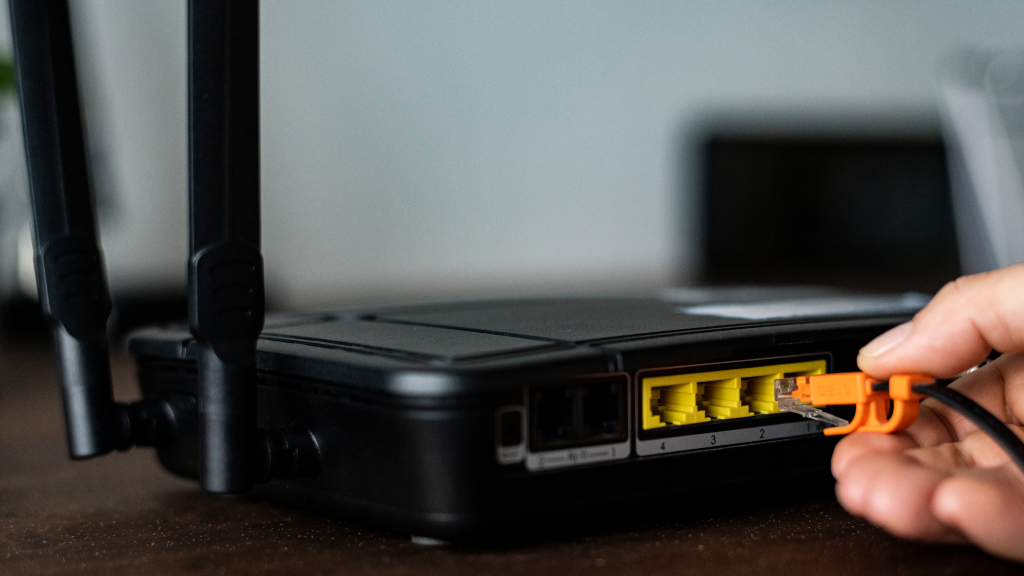
Keep Firmware Current Manufacturers frequently release firmware updates that don't just add features but close critical security loopholes like the SMB vulnerabilities mentioned earlier. Check for updates at least once a quarter, or enable auto-updates if your router supports it.

FAQ
Q: Is it ever okay to use the router's USB port? A: It is generally safe for very low-power, non-data tasks like powering a small dedicated bridge (e.g., a Zigbee hub) if the wattage is within limits, or for a printer that doesn't have built-in Wi-Fi. However, for storage and charging, it’s best avoided.
Q: Will a new Wi-Fi 6 or Wi-Fi 7 router solve these issues? A: Newer routers have much faster CPUs and better heat management, so they handle interference and multiple devices better. However, the security risks of SMBv1 and the physical laws of interference (like microwaves) remain the same regardless of how new your router is.
Q: How do I know if a device is using too much bandwidth? A: Most modern router apps (like those from Eero, ASUS, or TP-Link) have a real-time traffic monitor. Look for devices showing high "upload" or "download" activity when they should be idle.
Optimizing your home network isn't just about buying the most expensive gear; it’s about managing the ecosystem you already have. By treating your router as a dedicated communication hub rather than a power outlet or a storage server, you'll enjoy faster speeds, lower latency, and a significantly more secure digital life.