If you’re someone who switches between a work-issued laptop and a personal gaming rig, it’s not hard to imagine your desk being consumed by a "bird's nest" of cables. We’ve all been there: reaching behind a monitor to swap HDMI cables, or keeping two sets of keyboards and mice that clutter your workspace and kill your ergonomics. The dream for 2026 is a "Single-Cable" reality where your peripherals follow your focus automatically.
The most efficient way to achieve this is through a KVM (Keyboard, Video, Mouse) switch. Whether it is a dedicated piece of hardware or a feature integrated directly into your display, a KVM allows you to toggle control between two separate PCs with a single button press or even a cursor movement. Recent market data for 2026 indicates that 80% of high-end professional 4K monitors now include built-in KVM functionality as a standard feature, signaling a shift in how we design our workstations.
Before we dive into the technicalities, here is a quick breakdown of your two primary paths to a streamlined setup:
| Feature | Built-in KVM Monitor | External KVM Switch |
|---|---|---|
| Setup Complexity | Very Low (All-in-one) | Moderate (Requires extra cables) |
| Cable Reduction | Up to 70% reduction | Minimal reduction |
| Charging Support | Yes (via USB-C PD up to 140W) | Rarely |
| Best For | Minimalist setups, Laptops | Gaming, Dual-monitor setups |
| Cost | Included in premium monitors | $150 – $400 |

1. Understanding the KVM Switch: Your Setup’s Brain
Think of a KVM switch as a unified command center for your hardware. In the old days, these were clunky boxes used in server rooms. Today, they are sophisticated controllers that manage high-bandwidth signals like 4K 144Hz video and high-polling-rate gaming mice.
When you connect two PCs to a KVM, the switch acts as a middleman. It takes the signals from your keyboard, mouse, and webcam and "routes" them to whichever computer is currently active on the screen. By consolidating these connections, integrated KVM switches can reduce desk cable clutter by up to 70%—transforming a chaotic desk into a zen-like workspace.
There are three technical terms you need to know to ensure a smooth experience:
- EDID Emulation: This keeps the "handshake" between your PC and monitor alive even when you switch to the other computer. Without it, your open windows will resize and move around every time you toggle back and forth.
- PBP (Picture-by-Picture): This splits your screen down the middle, showing the output of both PCs simultaneously.
- Mouse Roaming: This is the "magic" feature where your mouse and keyboard switch computers simply by moving the cursor across the edge of the screen, similar to a dual-monitor setup but with two different machines.
2. Option A: Monitors with Built-in KVM Switches
For most professionals in 2026, the built-in route is the gold standard. Manufacturers like Dell, Samsung, and MSI have realized that the monitor is the natural hub for all peripherals. Instead of buying a separate box, you plug your keyboard and mouse directly into the monitor’s USB ports.
The real "killer feature" here is USB-C Power Delivery (PD). Modern KVM monitors often feature a USB-C port that carries video, data, and up to 140W of power. This means you can connect your laptop with a single cable, charging it while also gaining control of your desktop's peripherals. It’s the ultimate "one-plug" solution.
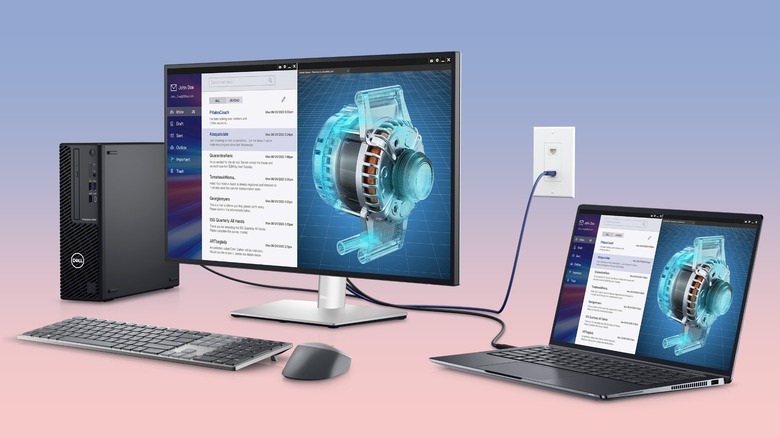
This integration has become so popular that it’s no longer a niche luxury. If you are buying a high-end 4K panel this year, there is an 80% chance it already has the hardware inside to manage two PCs. The advantage is purely aesthetic and functional—no extra power bricks, no extra boxes, just one clean screen.
3. Top 2026 Monitor Recommendations for Dual-PC Users
Choosing the right monitor depends on whether you prioritize color accuracy for work, refresh rates for gaming, or screen real estate for multitasking.
- The Productivity King: Dell UltraSharp U2725QE This 27-inch 4K panel features IPS Black technology for deeper contrasts. Its built-in KVM is incredibly smart, supporting Auto KVM which switches peripherals as soon as it detects a new video signal. With 120Hz refresh rates and 90W PD, it’s the benchmark for office excellence.
- The Ultrawide Powerhouse: Samsung Viewfinity S65VC If you want to replace two monitors with one, this 34-inch ultrawide is the answer. It includes a built-in 5MP webcam, a KVM switch, and a hidden cable management system. The 21:9 aspect ratio is perfect for using Picture-by-Picture (PBP) to view two PCs side-by-side.
- The Gaming/Work Hybrid: Pixio PX277 OLED Max For the user who works by day and games by night, this OLED panel offers a blistering 240Hz refresh rate. Unlike many gaming monitors, it doesn't skimp on productivity, offering a KVM switch and 65W USB-C charging for your work laptop.
- The Budget Pro: MSI Modern MD342CQPW Proof that you don’t need to spend four figures for a clean setup. This ultrawide offers a KVM and 98W Power Delivery at a price point that makes it accessible for home office upgrades.
4. Option B: External KVM Switches (For Specialized Setups)
While built-in KVMs are great, they have limits. Most built-in solutions only support one monitor. If you have a dual-monitor setup and want both screens to switch between two PCs, you will need an external KVM switch.
High-performance hardware like the TESmart HDK202-M24 is designed for this specific scenario. These devices support HDMI 2.1 and DisplayPort 1.4, allowing for 4K at 144Hz across multiple displays—specs that built-in KVMs often struggle to hit simultaneously.
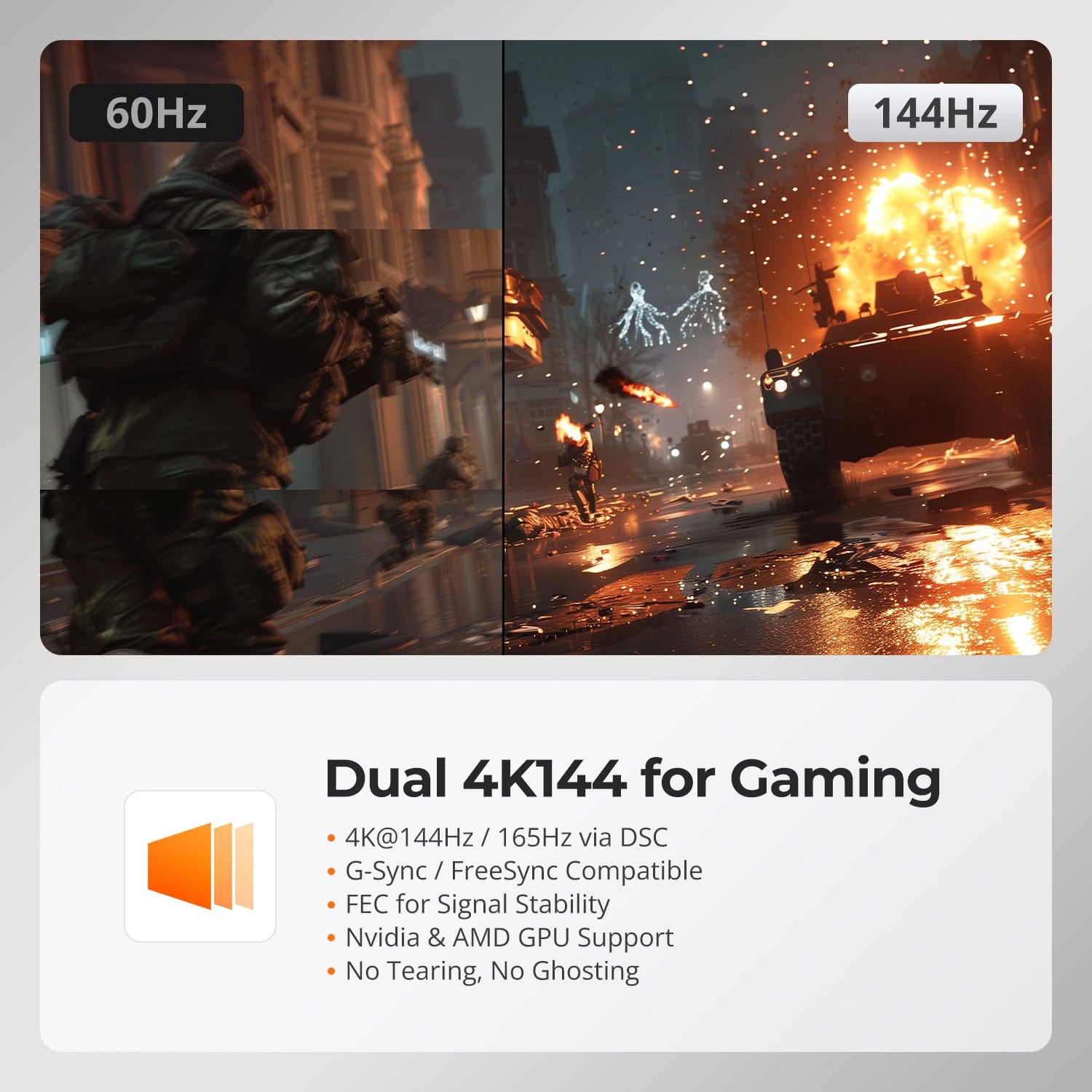
External KVMs are also the better choice for users with high-end peripherals. If you use a high-polling-rate gaming mouse or a mechanical keyboard with complex RGB software, an external switch with "Transparent USB" pass-through ensures your PC still recognizes the specific device rather than a generic "HID Keyboard."
5. Step-by-Step Setup: How to Connect Everything
Connecting two PCs to one monitor is a logical process, but the cabling can be tricky. Here is how you bridge the gap:
Step 1: Connect PC 1 (Your Primary Desktop)
Since most desktops don't use USB-C for video, you will use a two-cable approach:
- Plug an HDMI or DisplayPort cable from your GPU to the monitor.
- Plug a USB Upstream cable (usually USB-B to USB-A) from the monitor to a USB port on your desktop. This cable is the "data bridge" for your mouse and keyboard.
Step 2: Connect PC 2 (Your Laptop)
This is usually the easiest part:
- Connect a single USB-C cable (ensure it is a high-bandwidth Thunderbolt 4 or USB4 cable) from your laptop to the monitor’s USB-C port marked with a "PD" or "DP" icon. This one cable handles video, data, and charging.
Step 3: Map Your Peripherals
Plug your mouse, keyboard, and webcam into the USB-A ports located on the back or side of the monitor. These ports are now shared between both computers.
Step 4: Configure the OSD
Open your monitor’s On-Screen Display (OSD) menu. Look for "KVM Settings" and ensure that the USB Upstream port is linked to the HDMI/DP input, and the USB-C port is linked to the USB-C input. Now, when you switch video inputs, your mouse and keyboard will follow.
6. Pro Tips for Maximum Productivity
Once you are hooked up, there are a few "pro-level" tweaks that separate a good setup from a great one.
Embrace Mouse Roaming Many modern monitors (like Dell’s and Samsung’s) offer software utilities (e.g., Dell Display Manager). Once installed on both PCs, you can enable "Mouse Roaming." You won’t even need to press a button to switch; just move your cursor to the edge of the screen, and the monitor will automatically toggle the KVM to the other PC.
The Power of Picture-by-Picture (PBP) If you are on a long conference call on your work laptop but want to keep an eye on a personal project or a system render on your desktop, use PBP mode. This splits the screen into two vertical halves. It is particularly effective on Ultrawide monitors, where each PC gets a 1720x1440 workspace.
Daisy-Chaining for Dual Monitors If your monitor has a "DisplayPort-Out" port, you can use MST (Multi-Stream Transport) to daisy-chain a second monitor. By connecting the second monitor to the first, you can switch both screens between your two PCs using the single KVM switch in the primary monitor.
FAQ
Q: Will a KVM switch lag my gaming mouse? A: If you use a high-quality external KVM or a modern gaming-focused monitor (like the Pixio or ASUS ROG series), input lag is negligible. However, budget KVM switches can sometimes struggle with 1000Hz+ polling rates.
Q: Can I use a wireless mouse and keyboard with a KVM? A: Yes. Simply plug the USB dongle for your wireless peripherals into the monitor's USB hub. Bluetooth-only peripherals are harder to share; it is always better to use devices with a dedicated 2.4GHz USB receiver.
Q: Do I need a special cable for the USB-C connection? A: Absolutely. Not all USB-C cables are created equal. You need a "Full Feature" cable rated for at least 10Gbps data and DP Alt Mode video. Using a standard phone charging cable will result in no video signal.
Conclusion
The transition from a cluttered, two-monitor, two-keyboard mess to a streamlined KVM-driven workspace is one of the most satisfying upgrades a PC enthusiast can make. In 2026, the technology has matured to the point where "it just works." By leveraging the built-in KVMs found in 80% of today’s pro monitors, you can reclaim your desk space and focus on what matters—getting the job done, or winning the next match.