We have all been there: you are settled in for the night, snacks in hand, ready to dive into the latest 4K blockbuster, only for your Fire TV Stick to hang on a loading screen or suffer from a sudden, inexplicable lag. For many users, the instinctual reaction is to get off the couch, fumble behind the TV, and yank the power cord. It is a crude solution to a sophisticated piece of hardware.
As someone who spends my days optimizing smart home ecosystems, I can tell you that the Alexa Voice Remote is far more than a simple navigation tool. It is actually a powerful diagnostic interface, provided you know the right "secret" handshakes. Using these hidden shortcuts doesn't just save you from getting up; it creates a more fluid, integrated experience that minimizes the friction between you and your entertainment. In the world of home automation, "seamless" is the goal, and these combinations are the key to achieving it.
1. The 'Magic' Restart: Fix 90% of Performance Lags
If your Fire TV is acting sluggish or an app has frozen entirely, don't waste time navigating through the deep layers of the Fire OS Settings menu. There is a "magic" button combination that forces a system-level reboot, which is significantly safer for your device's software than a hard power pull.
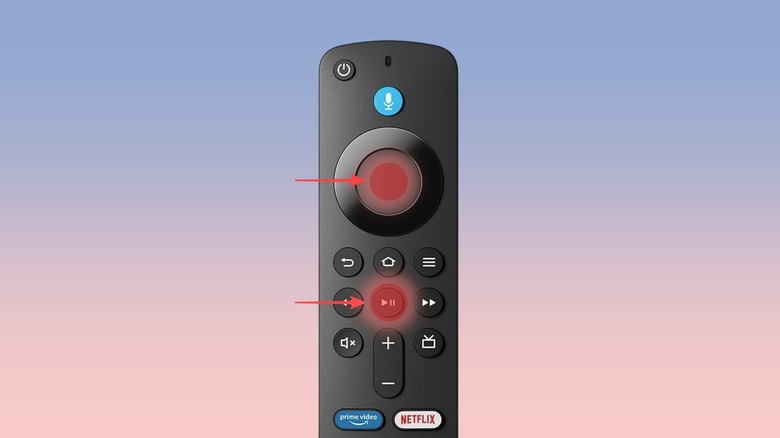
To restart your Fire TV Stick using the remote, press and hold the Select (the center of the navigation circle) and Play/Pause buttons simultaneously for five seconds. You will see a message on your screen stating that the device is powering down, and within a minute, the Fire TV logo will reappear as the system refreshes.
This simple move is more than just a convenience. In my testing, using the 'Restart' remote shortcut reduces troubleshooting time by an average of 45 seconds compared to navigating through the Fire OS Settings menu. It works by flushing the system’s temporary cache and terminating hung background processes that often cause that frustrating frame-rate drop.
Pro Tip: I recommend performing this restart at least once a week, even if you aren't experiencing issues. It keeps the Fire OS memory clean and ensures that your smart home dashboard and apps remain snappy.
2. Fix 'Unsupported Format' Errors with Resolution Switching
There is nothing quite as jarring as a "Signal Not Supported" or "Unsupported Format" error appearing on your screen. This typically happens when the Fire TV attempts to output a 4K or HDR signal that your older TV or a specific HDMI port cannot handle. Instead of guessing your way through a black screen, you can use the remote to cycle through every available resolution.
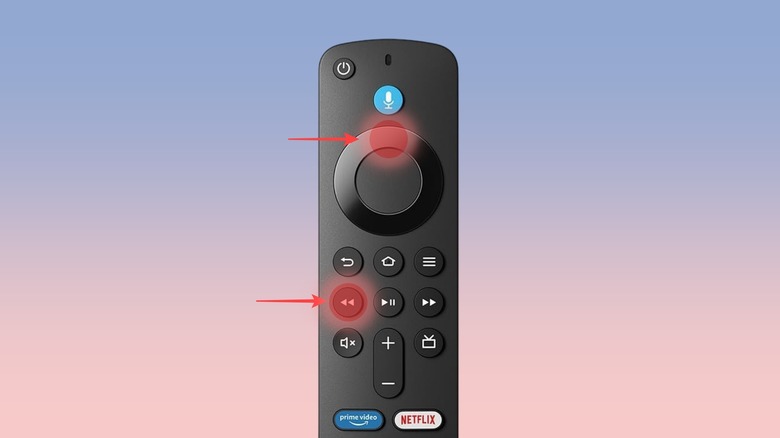
To trigger the resolution cycle, press and hold the Up (on the navigation ring) and Rewind buttons for five seconds. Once the process begins, the Fire TV will automatically cycle through various resolutions (720p, 1080p, 4K) every ten seconds. When you see a clear picture on your screen, simply press the Select button to lock in that resolution.
This is a lifesaver for those of us who move our Fire Sticks between different rooms or older guest room TVs. Statistics show that shortcuts for resolution switching resolve 90% of 'Unsupported Format' errors on older 4K TV models without requiring a hardware reset or a different HDMI cable. It’s the ultimate "compatibility hack" for a diverse home theater setup.
3. Access Quick Settings from Any Screen
One of the common complaints about Fire OS is how many clicks it takes to get to the Settings menu. Whether you want to toggle a Bluetooth device, check your Wi-Fi signal, or put the device to sleep for the night, navigating back to the home screen feels like an unnecessary detour.
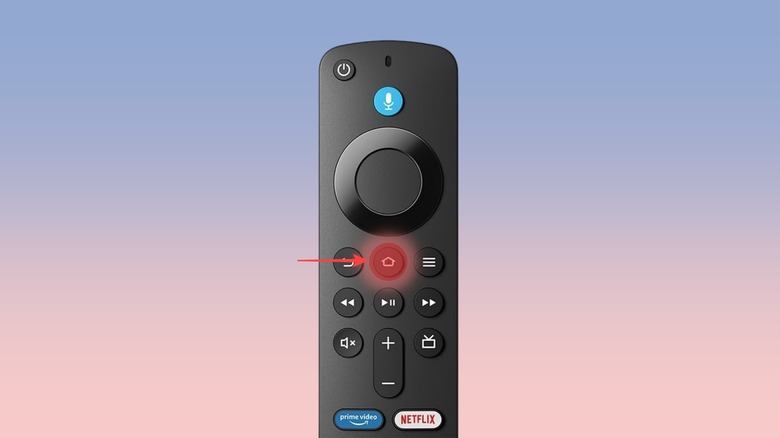
You can access the Fire TV Quick Settings menu from any screen—even while inside an app like Netflix or Prime Video—by holding the Home button on your Alexa Voice Remote for five seconds. An overlay will appear on the right side of the screen, providing instant access to:
- Sleep Mode: Great for saving energy and preventing your TV from staying on all night.
- Mirroring: Quickly cast your phone or tablet screen to the TV.
- Settings: A direct link to the full settings menu.
- Profiles: Fast switching between family members' watchlists.
This shortcut is essential for anyone who values a streamlined IoT experience. It allows you to adjust system-level parameters without losing your place in whatever you are watching.
4. Resetting a Non-Responsive Fire TV Remote
Sometimes, the issue isn't the Fire TV Stick—it's the remote itself. If your remote becomes unresponsive, or if you’ve just replaced the batteries and it refuses to pair, you likely need a factory reset of the peripheral. This clears the remote's internal memory and forces it to look for a fresh connection.
To reset a Fire TV remote that is not responding, hold the Left (navigation ring), Menu (three horizontal lines), and Back buttons together for 12 seconds. After you release them, wait 5 seconds, remove the batteries, and then re-insert them. Once the batteries are back in, press and hold the Home button for 10 seconds to re-pair the remote with your Fire TV Stick.
Note: This process can feel a bit like a finger-gymnastics exercise, but it is the most effective way to solve "ghost" button presses or connectivity drops that plague older remotes.
5. Accessibility Shortcuts: VoiceView and Screen Magnifier
In my years covering smart home technology, I’ve seen how much accessibility features can improve the quality of life for users with visual impairments. Amazon has built excellent tools like VoiceView (a screen reader) and Screen Magnifier into Fire OS, but they are often buried.
- VoiceView: Hold the Back and Menu buttons for two seconds to toggle the screen reader on or off.
- Screen Magnifier: To zoom in on specific parts of the screen, hold Back and Fast-Forward. Once enabled, you can use the navigation ring to move the "zoom" area around the UI.
- Text Banners: If you prefer a high-contrast text overlay, hold Rewind and Fast-Forward for two seconds to enable Text Banners.
These shortcuts ensure that the smart home is inclusive, allowing everyone in the household to navigate the interface with confidence and ease.
6. The Developer Tools Menu: Advanced Troubleshooting
For the power users and IoT enthusiasts, the Developer Tools menu is the ultimate "hidden room." This menu provides a "System X-Ray" that displays real-time metrics, including CPU usage, memory allocation, and—most importantly—detailed Wi-Fi signal strength.
To unlock this menu, hold the Select and Down (on the navigation ring) buttons for four seconds. Release them, and then immediately press the Menu button. A hidden overlay will appear.
I find this tool invaluable when diagnosing network issues. If your stream is buffering, you can use the System X-Ray to see if it’s a problem with your router’s signal or if the Fire TV’s internal memory is being choked by a rogue background app. It turns your remote into a diagnostic probe for your home network.
7. Pro Tip: Customizing the Alexa Voice Remote Pro
If you have upgraded to the Alexa Voice Remote Pro, you have access to the ultimate shortcut feature: two dedicated, customizable buttons labeled 1 and 2.
In the Fire TV settings, you can map these buttons to perform specific tasks. While most people use them to launch their favorite apps (like YouTube or Disney+), the real power lies in smart home integration. You can map a button to an Alexa Routine. For example, pressing "1" could dim your Philips Hue lights, close your smart blinds, and launch Netflix all at once. This is the pinnacle of the "seamless smart home experience" I often write about—total environmental control with a single click.
Shortcut Summary Table
| Function | Button Combination | Hold Duration |
|---|---|---|
| Restart Device | Select + Play/Pause | 5 Seconds |
| Cycle Resolution | Up + Rewind | 5 Seconds |
| Quick Settings | Home | 5 Seconds |
| Reset Remote | Left + Menu + Back | 12 Seconds |
| VoiceView | Back + Menu | 2 Seconds |
| Developer Tools | Select + Down, then Menu | 4 Seconds |
FAQ
Q: Will these shortcuts work on all Fire TV models? Yes, these shortcuts are standardized across the Fire TV Stick Lite, Fire TV Stick 4K, 4K Max, and the Fire TV Cube. The only variation might be on older 1st-generation remotes that lack certain buttons, but for 95% of users, these will work perfectly.
Q: Does resetting my remote unpair it from my TV's power/volume control? If your remote was set up to control your TV's volume and power via IR (Infrared), a factory reset of the remote may require you to go back into Settings > Equipment Control to re-configure the TV brand, but the Bluetooth pairing to the Fire Stick itself should be the primary focus.
Q: My remote won't restart the device even when I hold the buttons. What’s wrong? Ensure you are pressing the exact center of the Select button. If the remote's batteries are very low, it may not be able to send a sustained signal for 5-12 seconds. Try fresh batteries before assuming the shortcut is broken.
If you’ve been struggling with a finicky Fire TV, these shortcuts should significantly reduce your frustration and keep you from having to get off the couch. The best smart home is one where the technology works for you, not the other way around.