Quick Facts
- Critical Fix: iOS 26.5.1 (Build 23F81) specifically targets wired charging failures.
- Affected Models: iPhone 17, 17e, 17 Pro, 17 Pro Max, and iPhone Air.
- The Trigger: Battery reaching 0% or a Deep discharge state prevents USB-C recognition.
- The Workaround: Use a MagSafe or Qi wireless charger for 10-15 minutes to jumpstart the device.
- Update Size: Large download ranging from 12 GB to 17.44 GB.
- Relief Date: Apple released the fix on June 1, 2026 to address these immediate stability concerns.
If your iPhone 17 is not charging or turning on after the battery hit zero, you are likely experiencing a known firmware bug. Apple has released iOS 26.5.1 to address critical iphone charging issues specifically affecting the 2026 flagship lineup. While the device may appear dead, this iphone charging problem solution involving a wireless bridge and a software patch will restore your USB-C functionality. This update is essential for iPhone 17 Pro, Pro Max, and the new iPhone Air. To resolve wired charging issues on the iPhone 17 series or iPhone Air, update to iOS 26.5.1. This firmware fix resolves a bug where the USB-C charging protocol fails to handshake when the battery is critically low.
Diagnostic: Is It a Bug or a Broken Port?
There is a specific kind of panic that sets in when you connect your flagship smartphone to a power source and... nothing happens. In most cases, a lithium-ion battery requires about ten minutes of juice before the red battery icon appears on a black screen. However, for owners of the iPhone 17 and the ultra-slim iPhone Air, the experience has been far more harrowing over the last few weeks. This isn't your typical hardware failure or a case of lint stuck in the port. Instead, we are looking at a fundamental software handshake error within the charging protocol that manages how the device communicates with power adapters.
Under normal circumstances, even a dead iPhone has a tiny reserve of power to manage the basic logic needed to start a charge. But when these specific models enter a Deep discharge state—where the battery is so low it can’t even power the USB-C controller—the firmware fails to initiate the handshake. The phone essentially forgets how to talk to the USB-C cable, leading to a situation where the iphone 17 not charging or turning on becomes a permanent state despite being plugged into a 30W or 60W brick.
To help you determine if your device is suffering from this specific bug or a legitimate hardware issue, consider the following comparison:
| Scenario | Normal Behavior | iPhone 17 Bug (Pre-Patch) |
|---|---|---|
| Connection Type | USB-C cable and adapter | USB-C cable and adapter |
| Response | Screen glows/shows icon within 5 mins | No response (black screen) |
| Heat | Minimal warmth near the port | Completely cold to the touch |
| Wireless Response | Charges normally | Charges normally (the "Bridge") |
| Cause | Low battery | Firmware logic failure during deep discharge |
If your phone responds to a MagSafe connection but remains unresponsive to a physical cable, you have found the definitive iphone 17 charging problem solution. It is not a broken port; it is a software identity crisis.
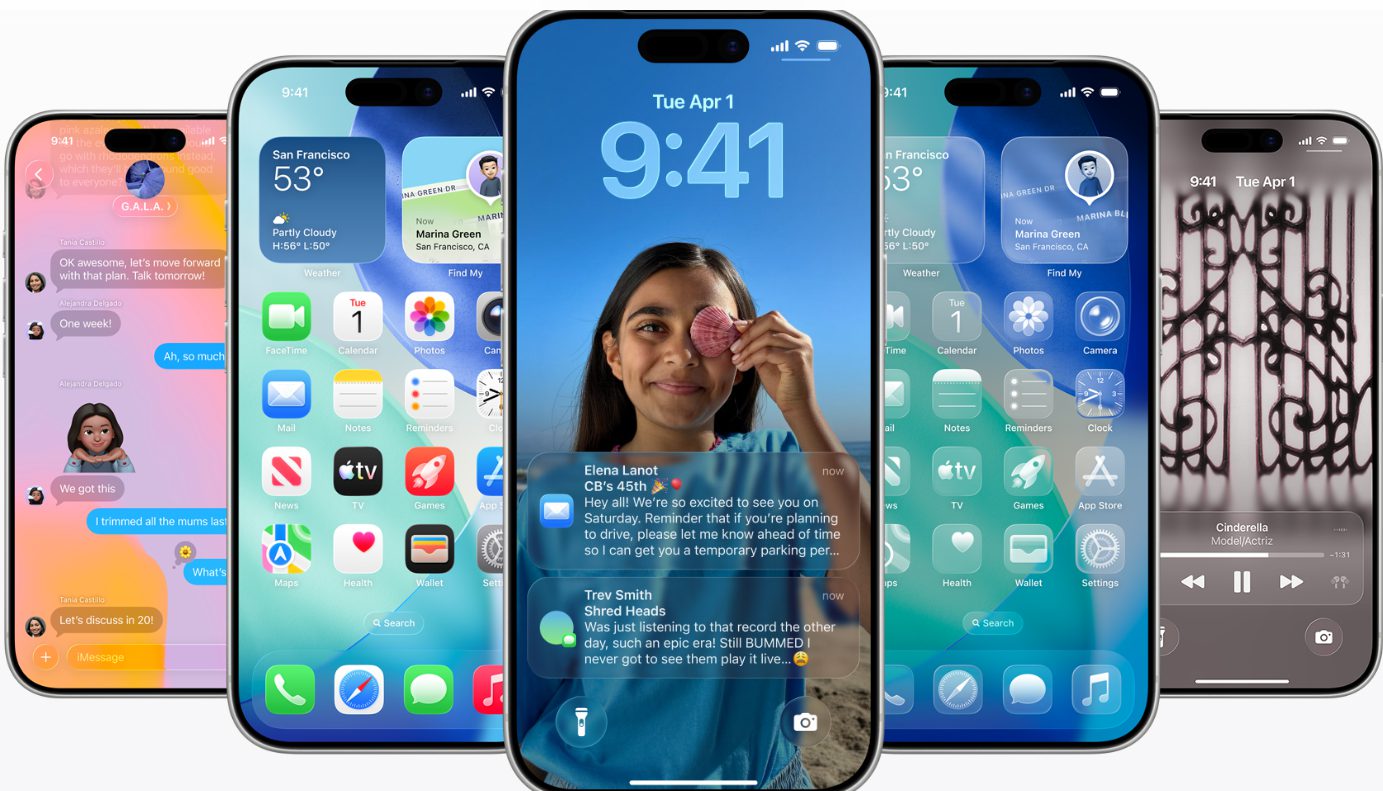
Step 1: The Wireless Bridge Workaround
The curious thing about the iPhone 17 architecture is how it handles different power paths. While the USB-C logic is currently tied up in a software loop when the battery is drained, the wireless charging induction coil operates on a slightly different power rail. This is our "secret door" back into the device. Before it was patched, users affected by this glitch often had to rely on MagSafe or wireless charging for 10 to 15 minutes to revive their devices after a deep battery drain.
If your device is currently a "brick," do not keep unplugging and replugging your USB-C cable. Instead, find a MagSafe chargers puck or a standard Qi-compatible wireless pad. Place the iPhone on the charger and leave it alone. Do not expect an immediate reaction. It can take up to 20 minutes for the induction coil to provide enough baseline voltage to bypass the faulty USB-C logic and jumpstart the system. Once the Apple logo appears, let the phone boot up completely while still on the wireless charger.
Pro Tip: If you are traveling and don't have a wireless charger, many modern coffee shops and airport lounges have Qi pads built into the tables. Use these for 15 minutes just to get enough power to turn the phone on. Once the phone is at 5% or 10%, you can usually switch back to a cable, but the most reliable way to avoid another crash is to proceed immediately to the update.
Step 2: Installing the iOS 26.5.1 Fix
Once your phone is back among the living, you need to apply the permanent fix. Apple worked at an accelerated pace to push out Build 23F81, which is the specific identifier for this maintenance release. This isn't a standard update that merely adds new emojis or tweaks the lock screen. The iOS 26.5.1 update ranges in size from 12 GB to 17.44 GB because it includes low-level firmware modifications to the system software responsible for managing power and controlling connection ports.
Because this update is massive—larger than some full OS releases—you must ensure you are on a stable Wi-Fi connection. To begin the installation:
- Open Settings on your iPhone.
- Navigate to General and then Software Update.
- You should see the prompt for iOS 26.5.1. If it doesn't appear immediately, try toggling your Wi-Fi off and on.
- Plug your phone into the charger (ideally MagSafe until the update finishes) and tap Download and Install.
During the installation, the phone will restart several times. This is normal, as the update is rewriting the firmware for the USB-C controller itself. Once the installation is complete, your charging protocol will be updated to correctly recognize a USB-C cable even when the phone is at 0%. This effectively ends the iphone 17 wired charging not working nightmare and ensures that your iPhone Air or iPhone 17 Pro Max functions as it was designed to.
Model Compatibility & Verification
It is important to note that this specific ios 26.5.1 charging fix is not for everyone. If you are using an iPhone 16, iPhone 15, or older, you will likely see your maximum version as iOS 26.5. Apple has intentionally limited the 26.5.1 patch to the latest hardware because the older models use a different power management integrated circuit that does not suffer from this specific handshake bug.
The affected models include:
- iPhone 17 and 17e
- iPhone 17 Pro
- iPhone 17 Pro Max
- iPhone Air (the 2026 debut model)
To verify that your installation was successful and that you are on the correct version, go to Settings > General > About. Tap on the iOS Version line. You should see the version number followed by the build code in parentheses. If it says Build 23F81, your iphone charging issues should be a thing of the past. This version ensures device stability and prevents the "deep discharge" lockout from occurring again.
FAQ
Why is my iPhone not charging even when it's plugged in?
There are several reasons, but on the newest models, it is often due to a firmware bug where the phone fails to recognize the cable. Other common reasons include a blown fuse in the charging brick, a frayed cable, or debris like pocket lint stuck inside the port which prevents the pins from making a clean connection.
How do I force an iPhone to charge?
While you cannot "force" electricity into a battery if the software blocks it, you can bypass the main wired path by using a wireless charger. If the phone is unresponsive, try a "hard reset" (Volume Up, Volume Down, then hold the Side Button) while it is connected to a known-working power source to trigger a reboot of the charging logic.
How do I tell if my iPhone charging port is damaged?
Inspect the port under a bright light with a magnifying glass. If you see bent pins or a scorched smell, the hardware is damaged. If the cable feels "wobbly" or doesn't click into place, there is likely physical debris inside. If the port looks clean and cables fit tightly but it won't charge, the issue is likely software-based or related to internal battery health.
What are signs of a failing iPhone battery?
Common symptoms include the phone shutting down unexpectedly while showing 10% or 20% remaining, the back of the phone feeling excessively hot during light use, or a "swollen" appearance that pushes the screen up. You can check your current status in Settings under the submenu for battery health.
Can you clean a charging port at home?
Yes, but you must be extremely careful. Use a non-metallic pick, such as a plastic dental flosser or a wooden toothpick, to gently hook out lint. Avoid using compressed air, as it can force debris deeper into the device or damage the microphone membranes located near the port.
Final Recommendation
Don't wait until your phone hits 0% to find out if you're affected by this bug. Given how large the installation file is, I recommend starting the ios 26.5.1 charging fix tonight while the phone is connected to your home Wi-Fi. Being stranded with a dead device is a stressful experience, especially when a simple software patch can prevent it. Keep an eye on your battery health and always have a MagSafe charger handy as a backup—it is the ultimate insurance policy for the modern iPhone user.