| Mod Category | Recommended Upgrade | Primary Benefit |
|---|---|---|
| Software | Decky Loader | Ultimate UI customization and feature plugins |
| Storage | M.2 2230 NVMe SSD | Massive speed and capacity for AAA titles |
| Cooling | JSAUX External Fan | Reduces peak temps from 80°C to ~65°C |
Since its launch, the Steam Deck has redefined what we expect from a handheld gaming device. While competitors like the ASUS ROG Ally and Lenovo Legion Go offer impressive raw specs, they often feel like locked-down appliances compared to Valve’s open-source masterpiece. The Steam Deck is more than a console; it is a modular platform—a canvas for enthusiasts to refine, overclock, and customize. In our testing at the lab, we’ve found that with the right combination of hardware and software modifications, you can transform a base-model Deck into a handheld powerhouse that rivals dedicated desktop setups.
1. Essential Software Mods: UI & Library Expansion
Before you even reach for a screwdriver, the most transformative changes to the Steam Deck happen within the software environment. The SteamOS "Game Mode" is excellent, but it is intentionally curated. To unlock the device’s full potential, you must embrace the community-driven scripts that bridge the gap between Valve’s ecosystem and the rest of the gaming world.
Decky Loader is the undisputed king of software mods. It acts as a plugin loader that integrates directly into the Quick Access Menu (the "..." button). Once installed via Desktop Mode, you gain access to a repository of community plugins. VibrantDeck allows you to adjust screen saturation (crucial for the non-OLED models), while SteamGridDB lets you customize game art for a cleaner look.
For those who don't want to be tethered exclusively to Steam, NonSteamLaunchers is an essential GitHub script. It automates the installation of the Epic Games Store, GOG, Battle.net, and Amazon Games, integrating them directly into your Steam library. For the retro enthusiasts, RetroDECK provides a unified, pre-configured environment for emulation, handling everything from the Commodore 64 to the PSP with a seamless interface that feels native to the Deck.
2. Internal Storage: The SSD Swap for Maximum Speed
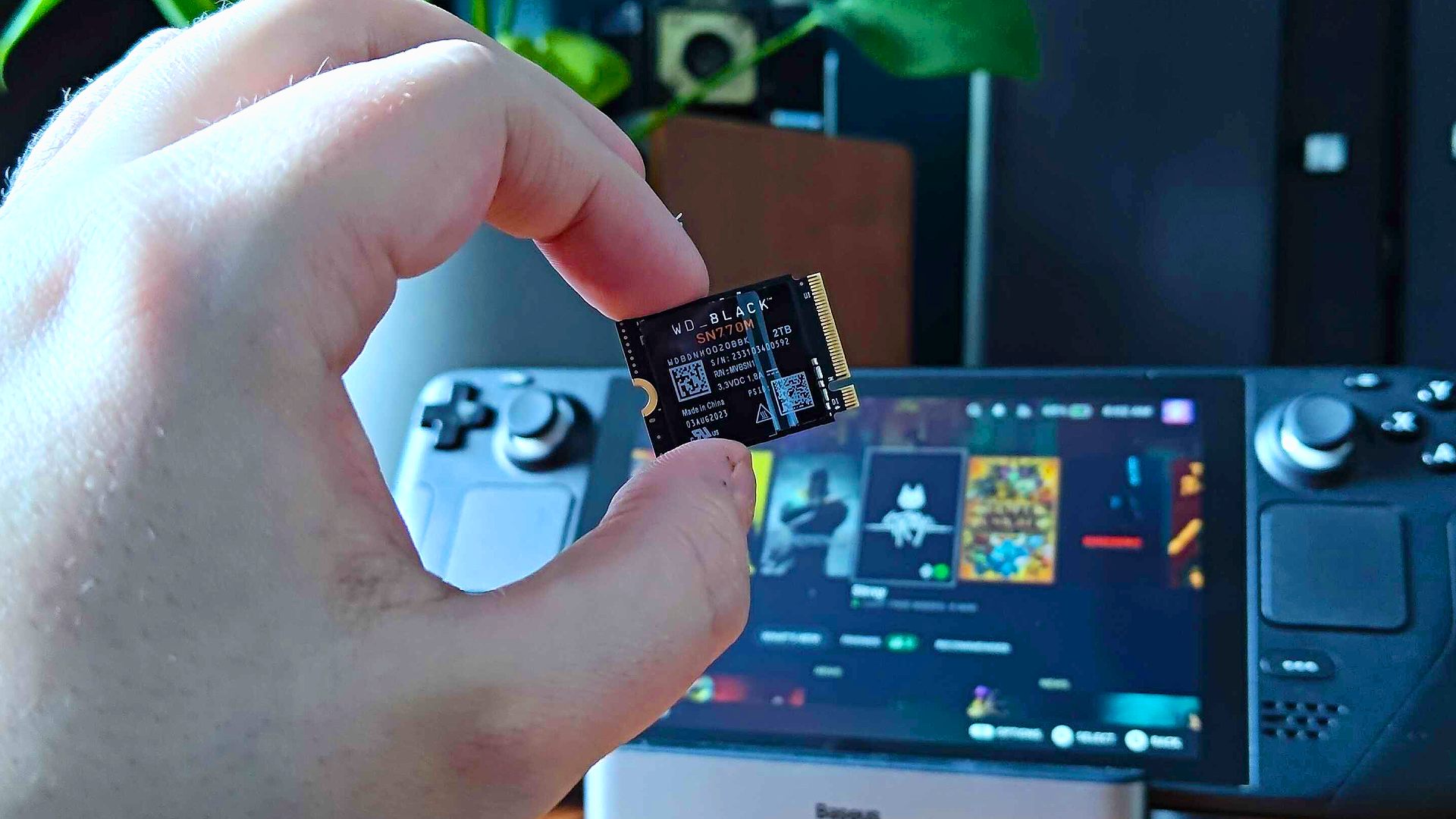
While a high-quality microSD card is convenient, it cannot match the performance consistency of internal storage. The factory 64GB or 256GB drives often bottleneck the device during heavy asset streaming in titles like Cyberpunk 2077 or Starfield. Replacing the internal drive with a larger, faster M.2 2230 NVMe SSD is the single most impactful hardware upgrade you can perform.
The gold standard for this upgrade is the TeamGroup MP44S or the WD Black SN770M. These drives offer 1TB to 2TB of space with read/write speeds that significantly reduce boot times and eliminate the "stutter" often associated with loading assets from an external card.
Pro Tip: Safety First Before opening the Steam Deck chassis, ensure the battery is discharged to below 20%. Lithium-ion batteries are significantly more stable at low charge levels, reducing the risk of a thermal event if the battery is accidentally punctured during the "surgery."
3. High-Capacity MicroSD: Plug-and-Play Expansion
If "opening up" your console feels a bit too daunting, high-speed external storage is your next best friend. Not all microSD cards are created equal; for the Steam Deck, you require a card with high random read/write speeds to handle modern game engines.
We recommend the Samsung Pro Plus (512GB or 1TB). With rated read speeds of up to 180MB/s, it sits at the top of the UHS-I class. While it won't beat an internal SSD, it is perfect for storing indie titles, 2D side-scrollers, and your entire emulation library. It allows you to reserve the internal high-speed storage for demanding AAA games that require every bit of bandwidth the Deck can muster.
4. Advanced Cooling: Beating Thermal Throttling
Heat is the natural enemy of performance. During extended sessions of Elden Ring, the Steam Deck’s internal APU can reach temperatures of 80°C or higher, leading to thermal throttling where the system intentionally slows down to prevent damage. This results in dropped frames and a loud, whirring internal fan.
The JSAUX External Cooling Fan is a specialized accessory that clips onto the back of the unit. Unlike passive cooling solutions, this active fan significantly increases airflow over the heat-dissipation zones. Our data shows that using an external cooler powered by its own independent battery source can reduce peak temperatures from 80°C to approximately 65°C-70°C. This not only stabilizes your frame rates but also extends the overall lifespan of the internal components.
5. The Docking Station: Hybrid Console Transformation
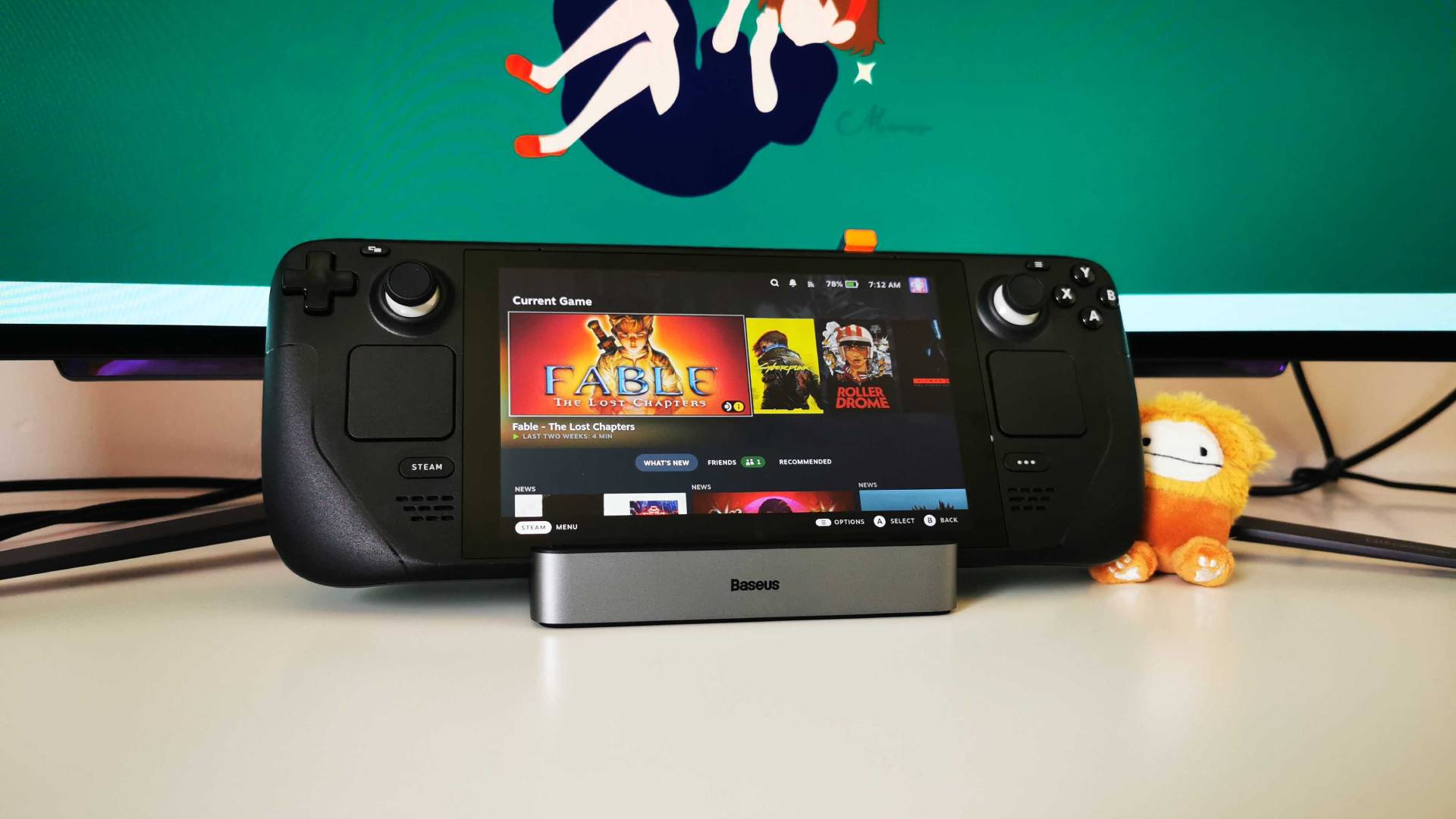
The Steam Deck's versatility shines when you transition from handheld to a desk or living room environment. While the official Valve Docking Station is a premium choice, third-party alternatives have caught up and, in some cases, surpassed it in terms of port selection.
The JSAUX 6-in-1 Docking Station is our top recommendation for the power user. It features a Gigabit Ethernet port for fast game downloads, three USB 3.0 ports for peripherals, and an HDMI output capable of 4K at 60fps. This setup effectively turns your Deck into a desktop PC or a "Steam Machine" for your television.
6. Personalizing Aesthetics with Skins and Backplates
Modding isn't just about performance; it’s about making the device yours. The industrial black plastic of the Deck is functional but uninspired. dbrand Skins offer the most precise fit in the industry, using 3M materials that protect against scratches without adding bulk. Whether you want a "Teardown" look that shows the internals or a premium leather feel, dbrand is the gold standard.
For those who want a deeper level of customization, Transparent Backplates from JSAUX or eXtremeRate are popular. These aren't just for looks; many include built-in thermal pads and rearranged vent patterns to further assist in heat dissipation, combining aesthetic flair with functional cooling benefits.
7. Protective Gear: Screen Protectors and Modular Cases
Given the portability of the Deck, protection is non-negotiable. The Ivoler Tempered Glass Screen Protector is a staple in the community, offering 9H hardness that resists scratches from keys or accidental drops while maintaining 99.9% transparency.
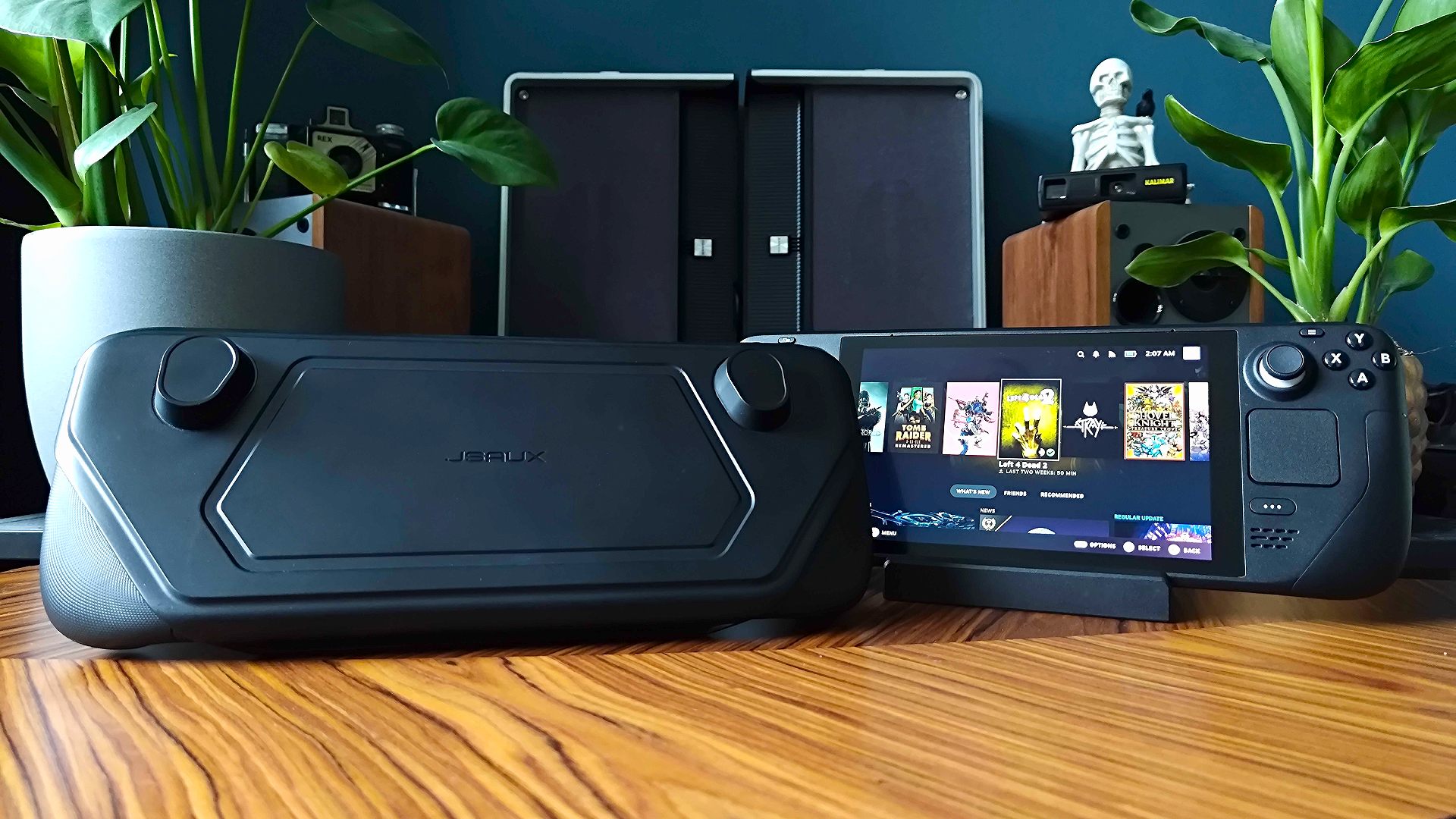
However, the "pro" move is the JSAUX ModCase. This isn't just a protective shell; it’s a modular system. It features a mounting strap on the back that can hold external power banks, cooling fans, or even a portable SSD. It’s the ultimate "utility belt" for your handheld.
8. Precision Control: Clicky Button Kits & Hall Effect Joysticks
If you are a competitive gamer, the standard membrane buttons and ALPS joysticks might feel a bit "mushy." For the ultimate tactile experience, you can swap the internal button membranes for Clicky Button Kits, which use mechanical switches similar to a high-end mouse.
More importantly, the dreaded "stick drift" can be solved permanently with Hall Effect Joysticks (such as those from Gulikit). These use electromagnets instead of physical contact points, meaning they will never wear out or drift.
Expert Recommendation: After installing new sticks, always remember to calibrate them. Use the
thumbstick_calcommand in the SteamOS Desktop Mode terminal to ensure your center points and outer deadzones are perfectly aligned.
9. Power on the Go: High-Wattage Power Banks
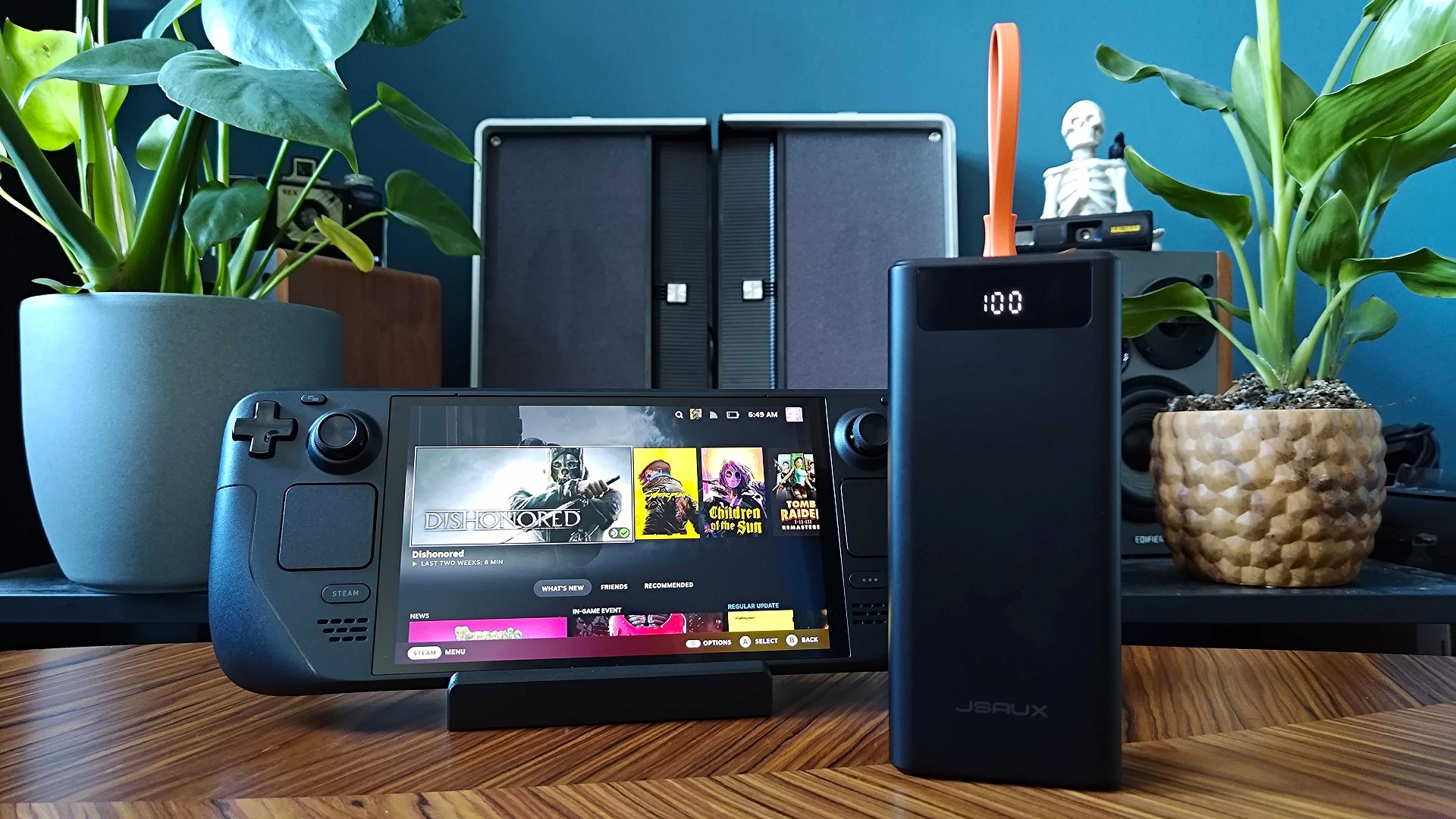
The Steam Deck is a power-hungry device, especially when running AAA titles. A standard phone charger or a low-wattage power bank won't cut it; you need a minimum of 45W Power Delivery (PD) to charge the device while you are playing.
The Anker 737 Power Bank (PowerCore 24K) is a beast of a unit, offering an 87W output that can fast-charge the Deck multiple times. Its massive 24,000mAh capacity ensures that even on a long-haul flight, you won't have to worry about your battery dying mid-boss-fight.
Shop High-Capacity Power Banks →
10. Peripheral Mastery: Audio and Controllers
Finally, to round out the "Supercharged" experience, you need the right peripherals. For audio, the SteelSeries Arctis Gamebuds offer ultra-low latency via a 2.4GHz dongle, which is superior to standard Bluetooth for gaming.
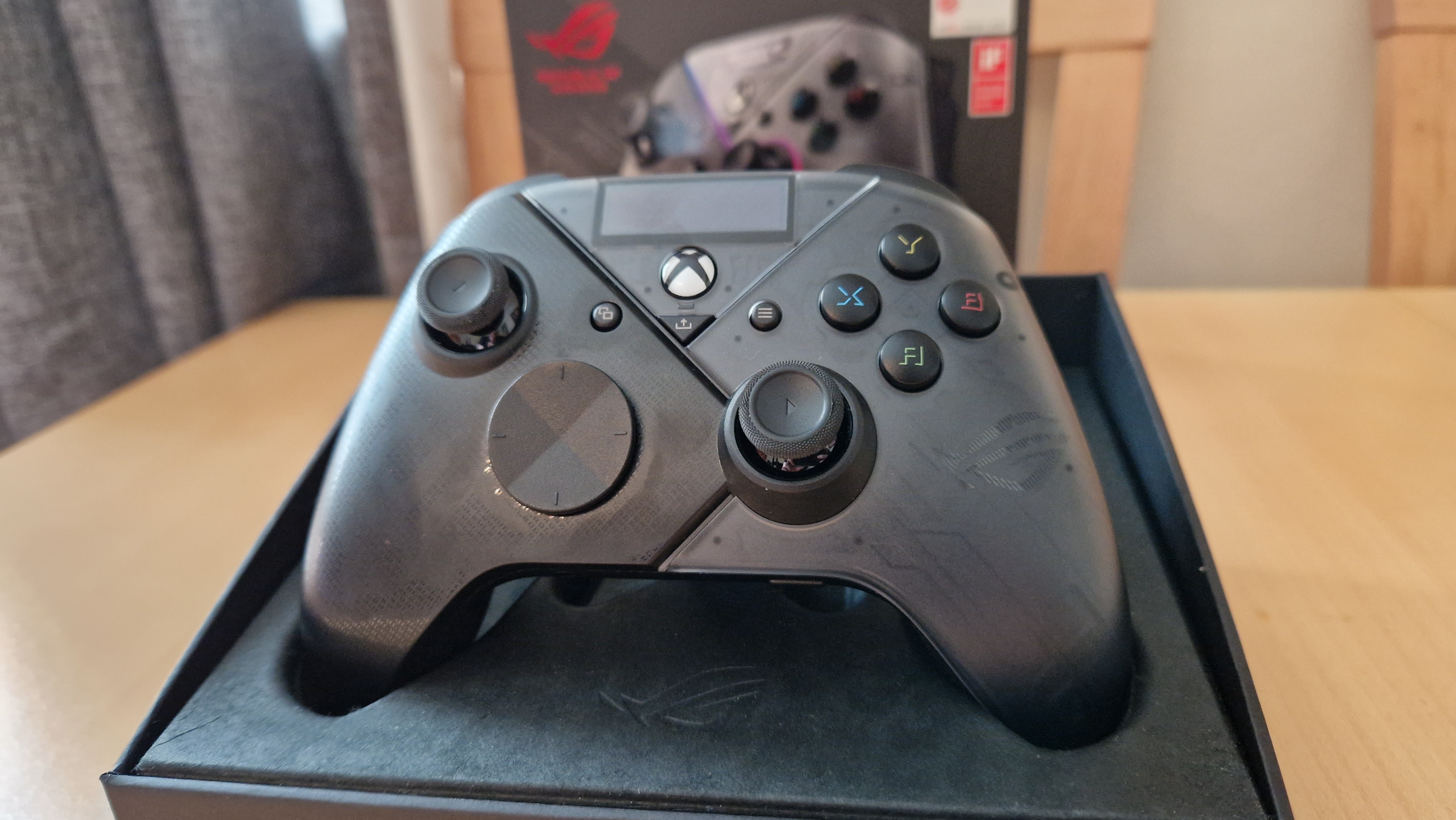
For docked play, nothing beats the precision of a high-end controller. While the Xbox Wireless Controller is a reliable choice, the ASUS ROG Raikiri Pro offers extra back buttons and a built-in OLED display for profile switching, giving you a competitive edge when the Deck is connected to a larger screen.
Selection Criteria: How We Chose These Mods
Our selection process for this 2024 guide was based on three pillars: Reliability, Ease of Installation, and Performance ROI. Every mod listed here has been vetted by the community and tested for durability. We prioritized mods that offer tangible improvements—either in frame rate stability, storage speed, or ergonomics—over purely cosmetic changes.
| Feature | SSD Internal | MicroSD Card |
|---|---|---|
| Read Speed | Up to 3,500 MB/s | Up to 180 MB/s |
| Write Speed | Up to 3,000 MB/s | Up to 130 MB/s |
| Best For | AAA Games / OS | Indies / Emulation |
| Installation | Technical (Opening Deck) | Plug-and-Play |
FAQ
Does opening my Steam Deck void the warranty?
In the US and several other regions, Valve has a pro-consumer stance. Opening your Deck does not automatically void the warranty; however, any damage you cause during the modding process (like stripping a screw or puncturing the battery) will not be covered. Always follow a reputable guide like iFixit.
How do I fix stick drift on the Steam Deck?
The most permanent fix is replacing the stock joysticks with Hall Effect sensors (like GuliKit). These use magnets to track movement and are physically incapable of developing traditional drift.
What tools do I need for hardware mods?
A standard electronics toolkit (like the iFixit Pro Tech Toolkit) is essential. You will specifically need a Phillips #0 and #1 screwdriver, a plastic prying tool (spudger), and a pair of tweezers for ribbon cables.
Conclusion
The Steam Deck is the ultimate "tinker-friendly" console. Whether you are a casual user looking for more storage space or a power user seeking to shave 15 degrees off your operating temperature, the ecosystem of mods available in 2024 is more robust than ever. By starting with software like Decky Loader and gradually moving toward hardware upgrades like the SSD swap, you can ensure your handheld remains at the cutting edge of mobile gaming for years to come.