Most of us have a "drawer of dust"—that graveyard of discarded tech where old cables, outdated smartphones, and mechanical external hard drives go to be forgotten. Maybe you upgraded to a blazing-fast NVMe SSD and decided that your old 2TB platter drive was just too slow for modern daily use. But in the world of PC hardware, retirement is a choice, not a necessity. An external drive is more than just a box for files; it is a self-contained, portable, and isolated environment that can solve some of the most frustrating bottlenecks in your computing life.
By thinking beyond simple file storage, you can transform that aging hardware into a high-performance creative tool, a fortress against ransomware, or a low-power media hub. Here are eight genius ways to breathe new life into your old external hard drive, along with the technical data to back them up.
1. Turbocharge Your Creative Workflow: The Photoshop Scratch Disk
Technical Difficulty: ⭐⭐
If you work in Adobe Photoshop or Premiere Pro, you’ve likely encountered the "Scratch Disk Full" error. By default, these programs use your system's primary drive as temporary storage for large cache files. Using an external hard drive as a Photoshop scratch disk offloads these temporary cache files from your primary system drive, preventing performance lag and preserving precious internal storage space.
Beyond just clearing space, there is a significant hardware longevity benefit. Utilizing an external drive as a dedicated creative cache can reduce primary SSD write cycles by up to 40% during intensive 4K video editing or high-resolution photo processing. Because SSDs have a finite lifespan dictated by Terabytes Written (TBW), offloading these high-frequency, temporary writes to an external drive (especially an older mechanical one where write cycles aren't a concern) effectively extends the life of your expensive internal NVMe boot drive.
How to set it up:
- Open Photoshop and go to Edit > Preferences > Scratch Disks.
- Check the box for your external drive and move it to the top of the priority list.
- Tip: For the best results, ensure your drive is connected via a USB 3.0 or higher port to maintain sufficient bandwidth.

2. Expand Your Gaming Horizon: Dedicated Steam Library
Technical Difficulty: ⭐
The "Modern Game Size" crisis is real. With titles like Call of Duty or Starfield easily exceeding 100GB, internal SSDs fill up faster than ever. While you might want your most competitive, fast-loading titles on your internal Gen4 SSD, your older external drive is the perfect home for your "backlog" or games that don't rely heavily on lightning-fast asset streaming.
Moving games via Steam’s built-in storage manager is significantly faster than deleting and reinstalling. Local transfers over USB 3.0 (approx. 100-150MB/s for HDDs) beat almost any residential internet download speed, saving you hours of waiting.
What You'll Need:
- An external drive (HDD or SATA SSD).
- Steam Settings > Storage > Add Drive.
- A library of "Single Player" or "Indie" games that aren't as demanding on load times.
3. The 'Cold Backup' Strategy: Ransomware Protection
Technical Difficulty: ⭐⭐
In an era of sophisticated malware, a "Cold Backup" vault is your ultimate insurance policy. This is an offline security strategy where a hard drive is connected only during data transfers and then physically disconnected to protect against ransomware and network-based malware. Unlike cloud storage or an always-on NAS, which can be encrypted by a virus if the host machine is compromised, a "cold" drive is invisible to attackers.
| Feature | Cloud Storage (Hot) | Cold Backup Drive (Offline) |
|---|---|---|
| Accessibility | Instant / Anywhere | Physical access required |
| Ransomware Risk | Moderate (Syncing can spread it) | Zero (Physically disconnected) |
| Cost | Monthly Subscription | One-time (Old hardware) |
| Privacy | Subject to provider terms | 100% User-controlled |
By keeping your most sensitive data—family photos, tax returns, and encryption keys—on an air-gapped external drive, you create a fail-safe that no hacker can reach through a network.
4. Your Emergency Kit: Portable Linux Recovery System
Technical Difficulty: ⭐⭐⭐
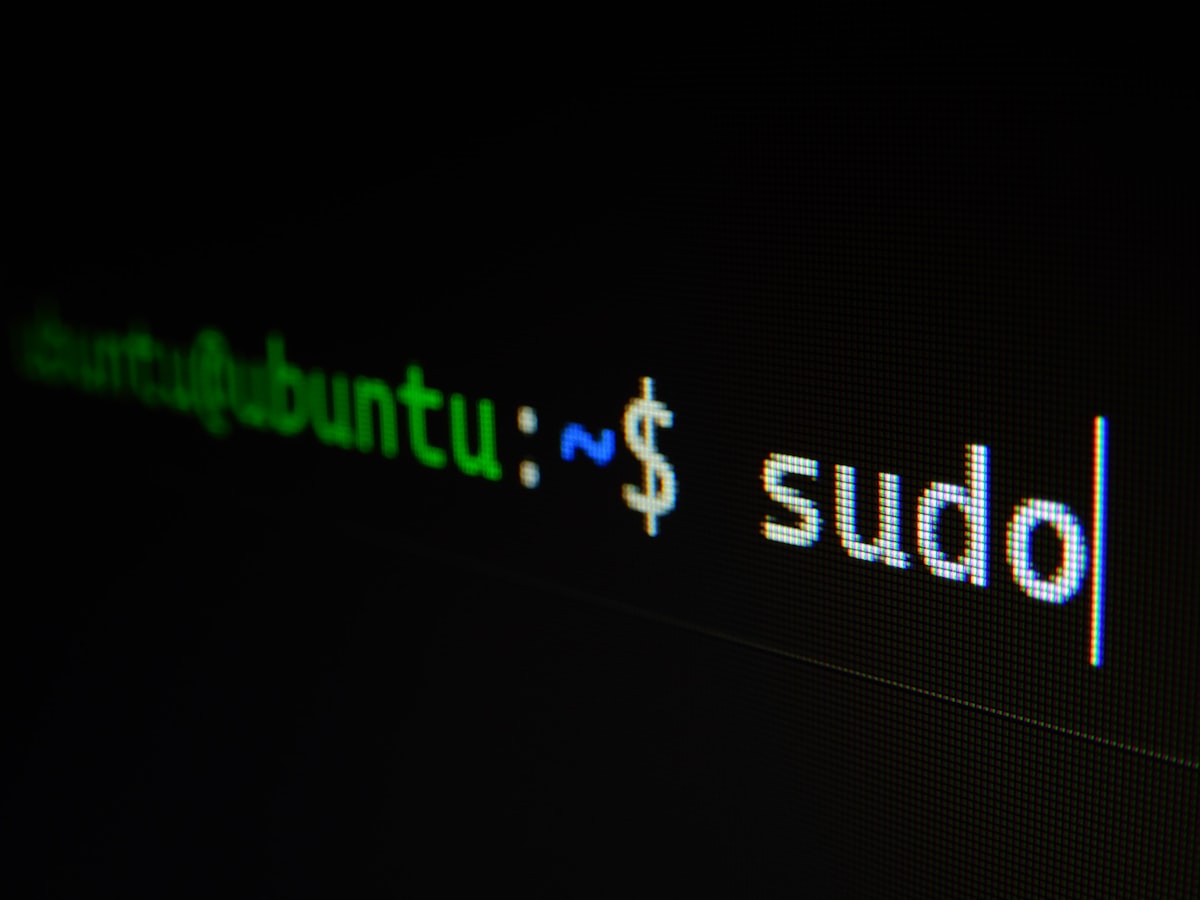
Every PC enthusiast should have a "break glass in case of emergency" tool. You can repurpose an old drive as a portable Linux recovery system to scan files, recover data, or test hardware without modifying internal storage. Unlike a "Live USB" which often loses your settings after a reboot, installing a full Linux distribution (like Ubuntu or Pop!_OS) onto an external hard drive allows for persistent storage.
This means you can keep diagnostic tools, specialized file-recovery software (like TestDisk), and hardware benchmarks pre-installed and ready to go. If your Windows installation crashes or your internal SSD fails, you simply boot from the external drive and you have a fully functional operating system to troubleshoot the mess.

5. DIY Home Media Server: Raspberry Pi + External Drive
Technical Difficulty: ⭐⭐⭐⭐
Building a dedicated media server usually sounds like a project for a power-hungry, noisy desktop PC. However, you can build a budget-friendly home media server using a Raspberry Pi and an old external HDD to store music, photos, and movies.
The efficiency of this setup is staggering. A Raspberry Pi-based media server powered by an old external HDD consumes between 12.5W and 27W, representing an 85% reduction in power usage compared to a standard desktop PC server. Using software like Plex or Jellyfin, you can stream your locally stored content to your TV, phone, or tablet without paying for monthly streaming subscriptions.
The Setup Checklist:
- Hardware: Raspberry Pi 4 or 5, your old external drive.
- Power: A powered USB hub (if the HDD draws too much power for the Pi).
- Software: OpenMediaVault or a simple Raspbian OS with Plex Media Server installed.
6. Lightweight Network Storage (NAS) via Your Router
Technical Difficulty: ⭐⭐
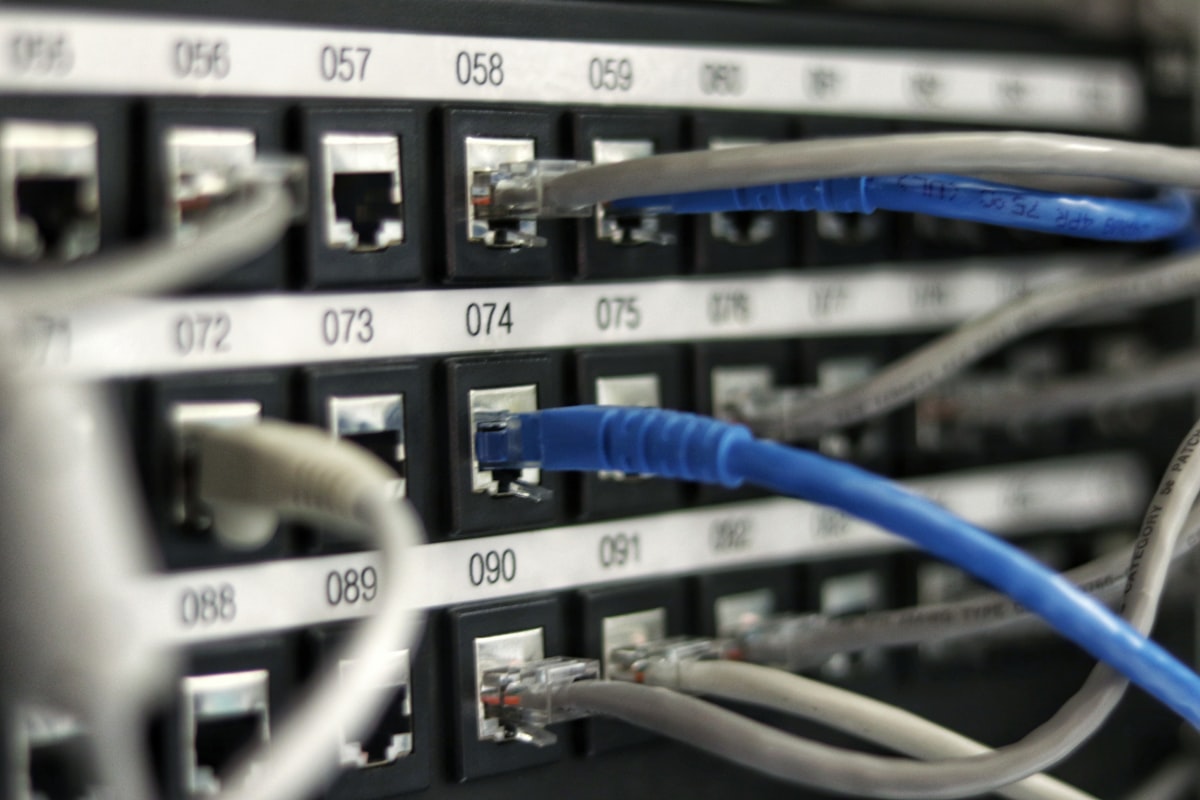
You don't always need a complex server setup to share files across your home. Most modern routers from brands like ASUS, TP-Link, or Netgear feature a USB 3.0 port on the back. By plugging your old external drive into this port, you can transform it into a lightweight Network Attached Storage (NAS).
This allows every device in your house—laptops, tablets, and even some smartphones—to access a shared folder. It’s an excellent solution for collaborative household projects or simply moving files from a desktop to a laptop without using a thumb drive. Most routers support SMB or FTP protocols, making the drive appear as a "Network Location" in Windows Explorer or macOS Finder.
7. The Tech Enthusiast’s Sandbox: A Dedicated Lab Drive
Technical Difficulty: ⭐⭐⭐
Are you curious about a new Windows Insider build? Or perhaps you want to test out a new beta software that warns about potential file system corruption? Don't risk your daily driver.
An external drive acts as a "sandbox" or a hardware-level isolation chamber. You can format the drive and use it as a dedicated lab for testing risky configurations. Because the drive is physically separate, any catastrophic file system error or boot-loader corruption stays contained on the external hardware, leaving your primary work machine untouched. For professionals, this is a standard practice to ensure stability while staying on the cutting edge of software development.
8. Network Deployment Hub: PXE Boot Support Drive
Technical Difficulty: ⭐⭐⭐⭐⭐
For those managing multiple machines in a home lab or small office, an external drive can serve as a PXE (Preboot Execution Environment) deployment hub. By storing various OS installation images (.ISO files) on the drive and connecting it to a machine acting as a deployment server, you can install Windows or Linux across your entire network simultaneously.
This centralizes your OS deployment and system recovery, ensuring that you always have the latest, updated images ready to go without needing to flash individual USB sticks for every different PC in the house.
Essential Gear: How to Connect Your Old Drive to Modern PCs
If you’ve pulled an internal drive out of an old laptop or desktop to repurpose it, you'll need the right enclosure to make it "external" again.
- For SATA Drives: Look for a 2.5-inch USB 3.0 or USB-C enclosure. They are inexpensive (often under $15) and provide the protection the drive needs for portable use.
- For NVMe Drives: If you've upgraded to a larger M.2 drive, grab a dedicated NVMe-to-USB-C enclosure. These can support speeds up to 10Gbps, making them perfect for the "Steam Library" or "Scratch Disk" use cases.
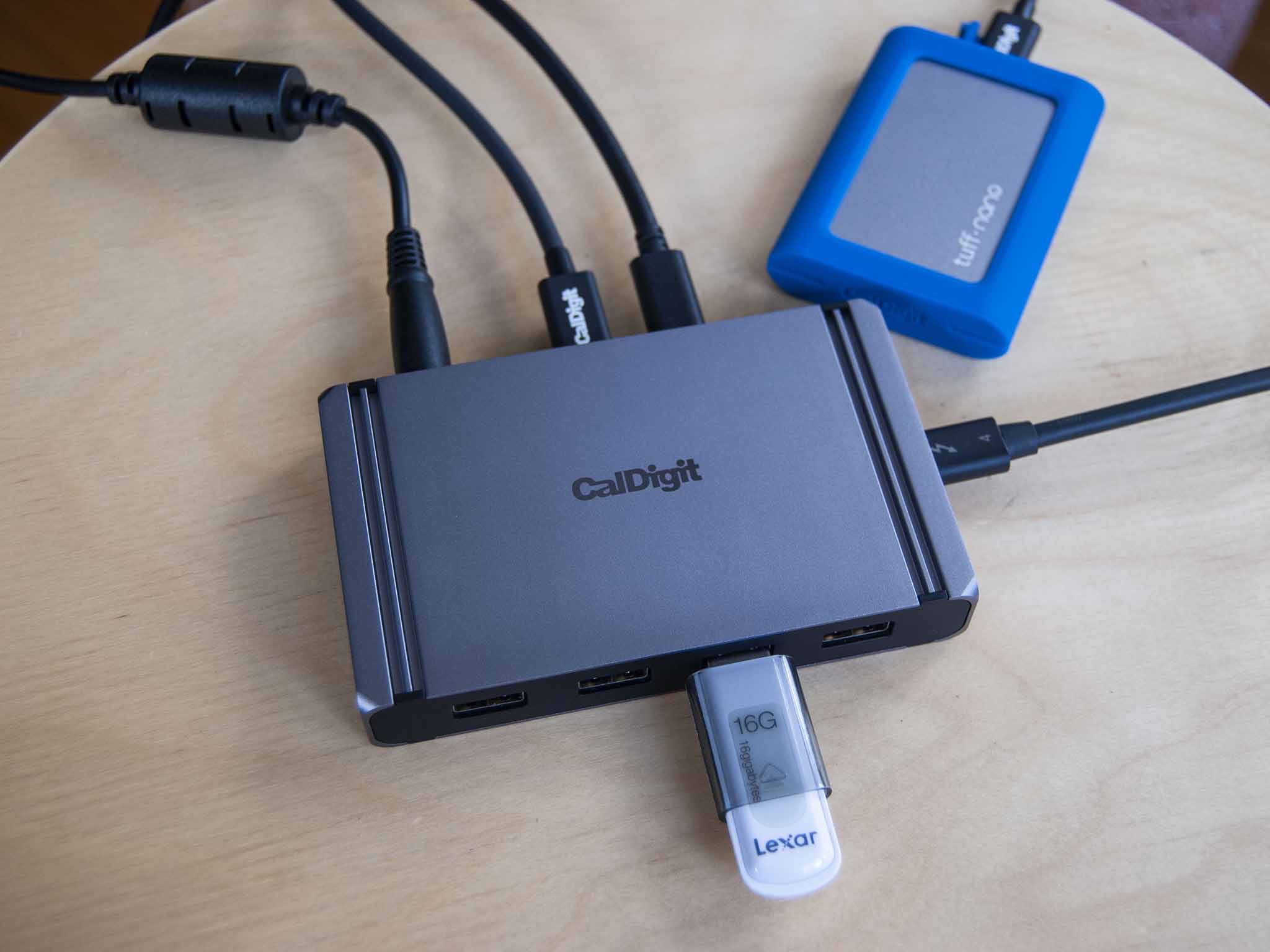
- For Laptop Users: Modern laptops like MacBooks or XPS 13s are notoriously port-starved. I highly recommend using a Thunderbolt 4 or high-quality USB-C dock from brands like CalDigit or Plugable. These allow you to keep your repurposed drives permanently connected to your desk setup while only occupying one cable on your laptop.
Conclusion
Your old external hard drive is a dormant asset, not electronic waste. Whether you’re looking to protect your system from SSD wear-and-tear using it as a scratch disk, or building a low-power media server that saves you 85% on energy costs, the utility of these drives remains high long after they’ve stopped being your "main" storage. Before you toss that old HDD back into the drawer, ask yourself which of these eight projects could improve your digital life today.
FAQ
Q: Can I use an old mechanical HDD for gaming in 2024? A: Yes, but with caveats. Use it for indie games, older titles, or large strategy games where load times aren't critical. Avoid using it for "DirectStorage" enabled games or fast-paced open-world titles (like Cyberpunk 2077) that require fast asset streaming from an SSD.
Q: Is it safe to leave an external drive plugged into my router 24/7? A: Yes, though mechanical drives will experience wear over time. If your router supports it, enable "HDD Sleep" or "Disk Spindown" settings to preserve the motor life and reduce power consumption when the drive isn't being accessed.
Q: Will using an external drive as a scratch disk really save my SSD? A: Absolutely. Heavy video editing can write hundreds of gigabytes of temporary data in a single session. Offloading those "junk" writes to an external drive preserves the TBW (Total Bytes Written) rating of your primary drive.