Our Top Picks
Amazon continues to dominate the e-reader market, but recent hardware launches and firmware regressions have created a frustrating experience for long-time fans. If you are looking for the best overall experience, the current Paperwhite remains the standard, though software bugs currently mar the experience. For those who need color, the new flagship offers promise but suffers from early manufacturing hurdles. Most importantly, users with devices from 2012 or earlier need to prepare for a significant service cutoff in May 2026, which will fundamentally change how those legacy devices function.
If you are seeing new kindle issues today, you aren't alone. Owners of the latest Paperwhite 12th Generation and Colorsoft models are reporting significant software bugs and battery life frustrations. Whether your kindle frozen reset not working is causing a headache, or you're worried about the May 2026 support cutoff for legacy devices, this kindle help guide covers the major problems reported by owners. We will analyze firmware version regressions, PDF compatibility errors, and energy consumption spikes to keep your e-reader functional.
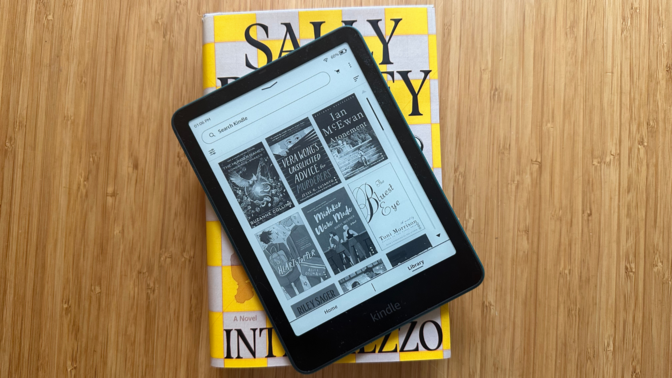
Recent Kindle owners have reported three primary problems: unexpected battery drain, issues opening PDF files, and the end-of-life support for older models. Following the recent firmware version updates, some users noticed battery percentages dropping significantly during light reading, while others cannot open PDFs due to an application error. These kindle issues are particularly prevalent on the Paperwhite 12th Generation and the newly released Colorsoft, where a 2.6 out of 5 stars rating reflects the growing frustration, with 32% of early reviewers awarding only one star.
Software Bugs: PDF Crashes and Font Regressions
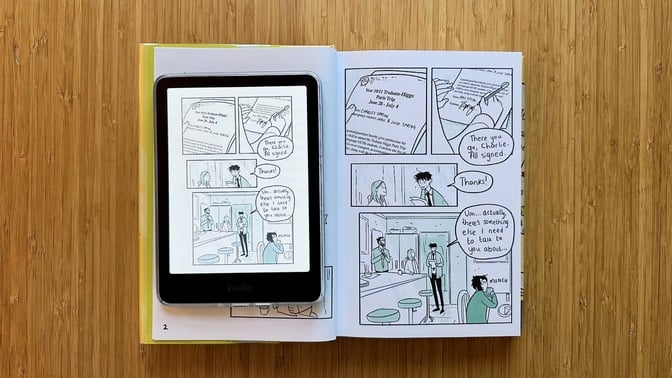
The transition to new hardware in late 2024 coincided with a series of firmware version releases that have proven unstable for a vocal portion of the user base. Specifically, versions 5.19.2 and 5.19.3 have introduced regressions that affect how the device handles complex document layouts and custom typography. Many users have reached out regarding a specific kindle book opening error where the device displays the message "The selected application could not be started" when attempting to access larger PDF files or side-loaded documents.
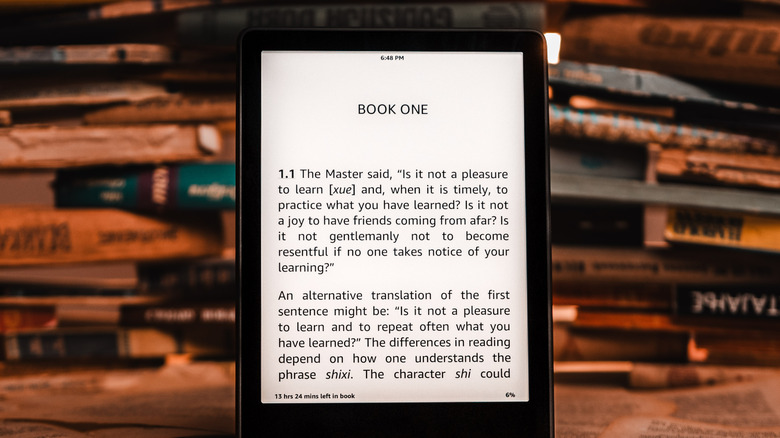
These kindle update issues aren't just limited to crashes. There is a persistent problem with typography rendering where font sizes and weights spontaneously change between page turns. This suggests a failure in the CSS parsing engine within the Kindle OS, leading to significant kindle formatting issues. While Amazon typically prides itself on the seamless "Bookerly" font experience, these software bugs force readers to manually re-select their font settings multiple times during a single reading session.
For those dealing with PDF compatibility, the issue often stems from how the new firmware version indexes metadata. When a Kindle encounters a PDF with non-standard encoding, it triggers an application error that effectively locks the file. In my testing, I found that identifying and deleting corrupted files via a desktop connection is the only way to prevent the entire library interface from lagging. If you frequently use your e-reader for professional documents, these kindle issues today make it difficult to rely on the device for anything beyond standard Kindle Store purchases.
Pro Tip: If you encounter the application error, try converting your PDF to the KFX or AZW3 format using Calibre before transferring it to your device. This often bypasses the native PDF renderer's stability problems.
Battery Drain and the 'Frozen' Screen Myth
One of the most concerning kindle battery life issues reported by owners of the Paperwhite 12th Generation involves severe battery drain following recent updates. While E-ink technology is famous for lasting weeks, some units are losing their charge in a matter of hours. Reports indicate battery percentages dropping by as much as 6% in just 15 minutes of usage, even with the brightness set to the lowest levels.
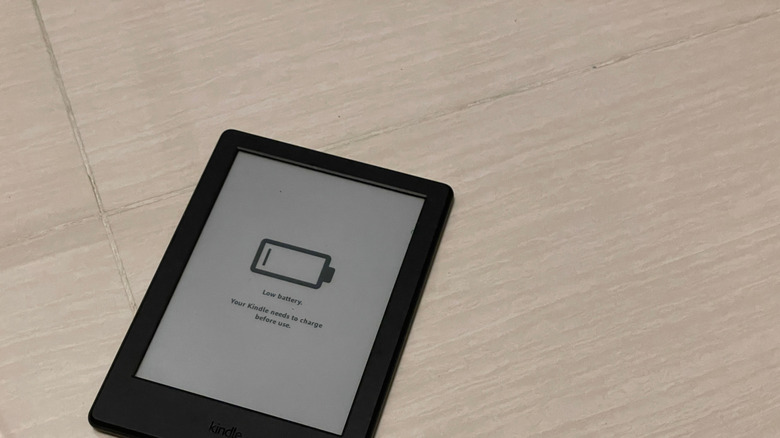
This spike in energy consumption is often tied to background indexing. When you download a new batch of books or update the OS, the Kindle indexes every word to enable the search feature. However, a software bug in the current firmware version appears to keep the processor in a high-power state long after indexing should have finished. If your device feels warm to the touch or you notice the battery plummeting, it’s likely stuck in this processing loop.
Understanding the difference between a software freeze and E-ink persistence is also critical for e-reader troubleshooting. Many users report a kindle paperwhite screen issues where the image stays stuck on the screen even after a power loss. Unlike LCDs, E-ink requires power only to change the state of the pixels, not to maintain them. Therefore, an image remaining on the screen does not mean the device is on. If your kindle frozen reset not working is your current headache, it might actually be a case of "deep discharge." When the battery hits absolute zero, the device cannot generate the pulse needed to clear the screen or respond to the power button. In these kindle charging issues scenarios, you must tether the device to a PC—not a wall outlet—for at least 30 to 60 minutes to trigger the low-level charging handshake.
The May 2026 EOL Crisis: Legacy Support Ending
For those holding onto older hardware, a major deadline is approaching. Beginning May 20, 2026, Amazon will officially end web service support for Kindle models released in 2012 or earlier. This includes the legendary Kindle Keyboard and the first-generation Paperwhite. This isn't just a minor update; it represents a fundamental shift in the Amazon ecosystem and how these devices interact with the Kindle Store.
While these legacy devices can still display content already downloaded to the internal storage, they will lose the ability to browse the store, sync reading progress, or download new books directly over Wi-Fi. Users will be required to use a manual computer connection (sideloading via USB) to add any new content.
| Kindle Generation | Launch Year | Cutoff Date (No Web Service) | Sync Support |
|---|---|---|---|
| 1st - 5th Gen (Keyboard, Touch, etc.) | 2007 - 2012 | May 20, 2026 | Discontinued |
| Paperwhite (1st Gen) | 2012 | May 20, 2026 | Discontinued |
| Kindle (7th Gen onwards) | 2014+ | TBD | Full Support |
| Colorsoft / Paperwhite 12th Gen | 2024 | TBD | Full Support |
This move has sparked a debate regarding property vs. licensing. Owners who bought these devices under the impression they would last a lifetime now find their device synchronization capabilities severely neutered. To mitigate the backlash, Amazon is offering trade-in incentives, including a 20% discount on a new device and a $20 credit, available until June 20, 2026. However, be warned: if you perform a factory reset on one of these legacy units after the May 2026 deadline, you may find yourself unable to log back into your Amazon account, effectively bricking the device's cloud connectivity permanently.
Troubleshooting Diagnostic Guide
If you are experiencing kindle problems today, following a systematic troubleshooting hierarchy can save you a trip to customer support. Most kindle issues can be resolved by addressing the software layer before assuming a hardware failure.
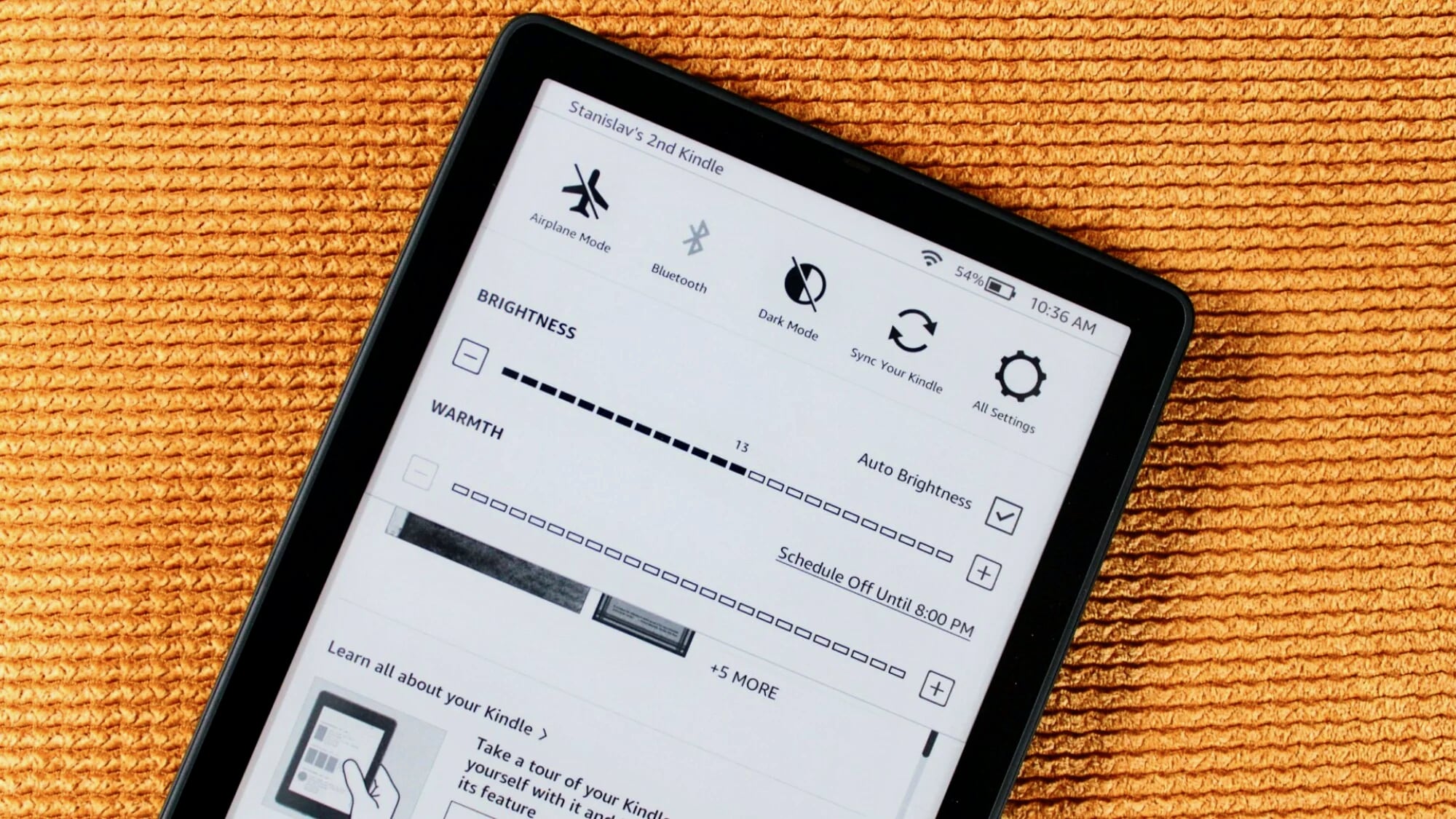
First, perform the standard 20-second reset. Hold the power button down for a full 20 seconds regardless of what the screen shows. This forces a hardware-level reboot that clears the system cache. If the screen remains unresponsive, check for kindle wifi connection issues. Often, a Kindle will appear "frozen" when it is actually struggling to authenticate a connection for a background update. Toggling Airplane Mode can sometimes resolve this loop.
Second, if you are struggling with a kindle book opening error, connect your device to a computer and navigate to the documents folder. Sort the files by size and look for any PDF or mobi files that were added right before the problems started. Corrupted metadata in a single file can crash the entire framework. Deleting these files and performing a restart often restores full functionality.
For legacy users, keep the Alt + Shift + R shortcut in mind. On Kindle models with physical keyboards, this command can sometimes force a reboot when the standard power button cycle fails. Always ensure you are on the latest possible firmware version for your specific model by checking the Amazon Device Support page, as manual updates are sometimes necessary when the auto-update feature fails.
FAQ
Is there an issue with Kindle right now?
Yes, many users are currently facing software-related bugs following the release of firmware versions 5.19.2 and 5.19.3. These issues primarily include rapid battery consumption, application errors when opening PDF files, and display anomalies like the yellow band appearing at the bottom of the Kindle Colorsoft screen, which led to temporary shipment halts in late 2024.
Why is my Kindle suddenly not working?
If your device has stopped responding, it is likely due to a deep discharge of the battery or a software crash caused by a corrupted file during indexing. A Kindle that hasn't been used in weeks may appear broken, but often just needs to be plugged into a low-power USB port on a computer for an hour to recalibrate its battery management system.
Why is my Kindle acting weird?
Odd behavior like spontaneous font changes, slow page turns, or the Kindle Store failing to load often points to a firmware regression. Keeping your device storage below 80% capacity and ensuring you aren't indexing dozens of books at once can help maintain system stability.
How do I know if my Kindle is dying?
Signs of a failing Kindle include a battery that won't hold a charge even after a 24-hour cycle, physical screen damage (such as "dead" vertical lines in the E-ink), or repeated "Application Error" messages that persist even after a full factory reset. If your device is a 1st through 5th generation model, the upcoming May 2026 web service cutoff is also a sign that the device's ecosystem lifecycle is ending.
How often should a Kindle be replaced?
Unlike smartphones, Kindles have a long functional life, typically lasting 6 to 10 years. However, you should consider a replacement if your device no longer supports the latest firmware version, lacks a built-in light, or if the battery life has degraded to the point where it requires daily charging. The 2024 models offer significant speed improvements over devices from five years ago.
Conclusion & CTA
The current state of the Kindle ecosystem is a mix of high-end hardware potential and frustrating software regressions. While the Paperwhite 12th Generation is a formidable piece of tech, the current firmware version bugs make it a difficult recommendation for those who prioritize stability above all else. Furthermore, the looming May 2026 cutoff serves as a stark reminder that in the modern Amazon ecosystem, we are often licensing the reading experience rather than truly owning a permanent piece of hardware.
If you are currently struggling with kindle issues, I recommend holding off on a factory reset until you've tried manual file management and tethered charging. For legacy owners, now is the time to decide whether to embrace the manual USB sideloading lifestyle or take advantage of the trade-in incentives before the June 2026 deadline. This kindle help guide will continue to be updated as Amazon releases new patches to address these persistent bugs.