You are settling in for a long-awaited 4K HDR screening of a cinematic masterpiece—perhaps a high-bitrate stream or a boutique Blu-ray—when the screen suddenly flickers to black. Or perhaps, more subtly, a series of tiny, dancing white dots begins to crawl across the dark areas of the frame like electronic snow. In the world of high-end AV setups, we often blame the expensive hardware: the OLED panel, the flagship receiver, or the gaming console. However, field troubleshooting reports indicate that approximately 60% of intermittent "No Signal" errors in professional AV environments are resolved simply by replacing the HDMI cable, not the hardware itself.
Unlike the analog cables of the past, which would provide a progressively noisier picture as they degraded, HDMI is a digital interface that operates on what engineers call the "Digital Cliff." You either have a perfect signal, or you have nothing at all—but there is a narrow, frustrating territory just before the "drop-off" where a cable begins to fail. Understanding these early warning signs is the difference between a quick five-minute fix and an expensive, unnecessary service call for your television.
5 Signs Your HDMI Cable Is Actually Dying Right Now
1. The 'Sparkle' Effect (Digital Noise)
If you notice random white pixels or "shooting stars" dancing across your screen—most visible against dark backgrounds—your cable is likely suffering from internal signal degradation. In technical terms, this is often caused by a failure in Transition Minimized Differential Signaling (TMDS). When the copper pairs within the cable cannot maintain the required voltage to differentiate between a 1 and a 0, the receiver "guesses," resulting in a misplaced white pixel.
This "sparkling" is the definitive "check engine light" for an HDMI connection. It suggests that while the cable is still "working," it no longer possesses the integrity to carry the full bandwidth of your content.
2. Intermittent Screen Blackouts
The most common and frustrating symptom of a dying cable is the "HDMI Handshake" failure. You may experience a screen that goes completely dark for two to three seconds before the image abruptly returns. This happens because the HDCP (High-bandwidth Digital Content Protection) encryption loses its sync. If the cable is failing to pass data packets consistently, the source and the display have to "re-shake hands" to verify the encrypted connection. If this happens more than once an hour, the cable’s internal wiring is likely compromised.
3. Distorted Colors or 'Washout'
When an HDMI cable begins to fail, it doesn't always lose the entire signal. Sometimes, it loses specific color channels. You might notice the screen suddenly tinting green or magenta, or a strange "solarized" effect where colors look like a photographic negative. This is often a sign of a pin-to-wire disconnection within the housing. While you might be tempted to calibrate your TV settings, if the color distortion is intermittent, the culprit is almost certainly the physical medium—the cable.
4. Audio Glitches: Crackling, Popping, or Drops
HDMI doesn't just carry video; it carries multi-channel uncompressed audio and, in many modern setups, an eARC (enhanced Audio Return Channel) signal. If you hear sudden "pop" sounds or if your soundbar periodically loses audio for a split second, the cable is struggling. Because audio requires significantly less bandwidth than 4K video, audio issues usually indicate a severe physical break or significant electromagnetic interference (EMI) that the cable's shielding can no longer block.
5. The Resolution 'Downgrade'
Your TV might be a state-of-the-art 4K 120Hz panel, but if you look at the "Signal Information" in your settings, you find it is suddenly locked at 1080p or 720p. When a cable’s quality degrades, the source device (like a PS5 or Apple TV) will automatically down-negotiate the resolution to a lower bandwidth that the cable can actually handle. If you can’t force your device back into 4K mode without losing the signal entirely, the cable has likely aged past its prime.
Symptoms Checklist for Quick Diagnosis:
- Visual: Random white dots, screen flickering, or temporary blackouts.
- Color: Sudden shifts to green/purple hues or a "snowy" image.
- Audio: Audible pops, cracks, or out-of-sync dialogue.
- Hardware: A cable that feels excessively hot to the touch at the connector head.
Why HDMI Cables Fail: The Hidden Culprits
The common misconception is that because HDMI cables have no moving parts, they should last forever. In reality, they are delicate pieces of infrastructure subject to both mechanical and environmental stress.
Physical Damage and Mechanical Stress
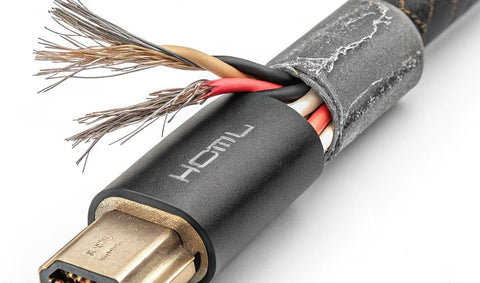
The most frequent cause of failure is "cable strain." This occurs when a TV is mounted flush against a wall, forcing the HDMI cable to bend at a 90-degree angle. Over time, this stress pulls the internal copper filaments away from the pins in the connector head. Frequent unplugging—common for those who move laptops between workstations and home theaters—can also wear down the friction-fit of the HDMI port, leading to a loose connection.
The 15-Foot Rule
Physics is the enemy of long-distance digital signals. Data indicates that cables exceeding 15 feet are 2.5 times more likely to suffer from signal degradation and physical wear compared to standard 6-foot high-speed HDMI cables. As the length increases, the resistance of the copper wire increases, and the signal's "eyes" (a technical measure of signal clarity) begin to close. If you are running long cables through walls without "active" amplification, failure is not a matter of if, but when.
Environmental Degradation
In humid environments or coastal areas, salt air and moisture can lead to microscopic corrosion (oxidation) on the gold or nickel plating of the HDMI pins. This corrosion increases electrical resistance, eventually leading to the "sparkle" effect mentioned earlier. Heat is another factor; if your cables are bundled tightly behind a hot receiver or TV exhaust, the PVC jacket can become brittle, leading to internal cracks.
Port vs. Cable: How to Tell Which is Broken
Before you spend money on a replacement, you must isolate the variable. Is it the $10 cable or the $2,000 television port?
The 'Wiggle Test' While your TV and source are on, gently—very gently—move the HDMI connector at the back of the device. If the image flickers or changes color only when you apply pressure, the problem is mechanical. If the image flickers when you wiggle the connector, the port on your TV might be loose. However, if the issue persists regardless of how you hold the cable, the internal wiring of the cable is likely the defective part.

The Diagnostic Protocol:
- Swap Ports: Move the cable from HDMI 1 to HDMI 2. If the problem disappears, you have a bad port on your TV.
- Reverse the Cable: Some cables are directional (especially "active" or "optical" HDMI cables). Even for standard cables, flipping the direction can sometimes temporarily bypass a weak connection point.
- The Continuity Check: If you have a second display (like a computer monitor), test the cable there. If the "sparkles" follow the cable to a different device, the cable is officially destined for the recycling bin.
Choosing the Right Replacement Cable
When shopping for a replacement, do not be swayed by "premium" marketing fluff like "gold-infused oxygen-free copper." What matters are the Version and the Certification. If you are running a 4K HDR setup or a high-refresh-rate gaming console, you need a cable that can handle the massive bandwidth requirements of modern data.
| HDMI Version | Max Bandwidth | Max Resolution / Refresh Rate | Best For |
|---|---|---|---|
| HDMI 1.4 | 10.2 Gbps | 4K @ 30Hz / 1080p @ 60Hz | Older Blu-ray players, 1080p TVs |
| HDMI 2.0 | 18.0 Gbps | 4K @ 60Hz (HDR support) | Apple TV 4K, Roku, Most Gaming |
| HDMI 2.1 | 48.0 Gbps | 4K @ 120Hz / 8K @ 60Hz | PS5, Xbox Series X, High-end PC |
Certification is Key: Look for the "Ultra High Speed HDMI" QR code label on the packaging. This ensures the cable has been tested in an authorized center to meet the 48Gbps requirement and features low EMI (electromagnetic interference).
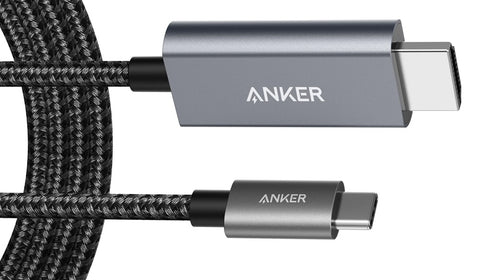
For most users, a braided jacket provides significantly better protection against the "90-degree bend" syndrome that kills most cables. If you are running a cable through a wall, consider an Active Optical HDMI (AOC) cable, which uses fiber optics to carry the signal, virtually eliminating the 15-foot signal degradation rule.
Shop Certified Ultra High Speed Cables →
Frequently Asked Questions (FAQ)
Can a bad HDMI cable damage my TV? It is extremely rare, but a physically mangled connector with bent pins could theoretically short out the pins in the HDMI port. If you see physical damage on the cable head, do not force it into your TV. However, "signal" failure itself will not harm your hardware.
How often should I replace my HDMI cables? There is no set expiration date. If you are getting a perfect 4K signal without dropouts, there is zero benefit to upgrading. You should only replace them when upgrading to a higher-bandwidth source (like moving from a 1080p player to a 4K player) or when symptoms of failure appear.
Can a bad cable cause vertical lines on the screen? Usually, vertical lines are a sign of a failing LCD/OLED panel or a T-CON board issue within the TV. HDMI failure typically manifests as "sparkles," horizontal "tearing," or total signal loss rather than consistent vertical lines.
Final Troubleshooting Checklist
Before you assume your TV is a lost cause, follow this professional checklist:
- Unplug both ends of the HDMI cable and blow out the ports with compressed air (dust is a common signal killer).
- Perform the "Wiggle Test" at both the source and the display.
- Check for "The 15-Foot Rule"—if your cable is long, try a shorter 3-foot cable to see if the signal stabilizes.
- Look for the "Ultra High Speed" certification if you are using 4K/120Hz features.
In the high-stakes world of digital A/V, the humblest component—the cable—is often the weakest link. By recognizing the signs of a dying HDMI connection early, you can save yourself hours of frustration and ensure your "Netflix night" remains uninterrupted.